

The Best Time Clock
Platforms 2024
Author: Sohil
(updated 2024)
The rise in remote and hybrid work has led many companies to explore new ways of collaborating with team members, analyzing workflows, meeting deadlines, and keeping track of billable hours and labor costs.
An array of collaboration and communication tools quickly flooded the market making it simple for team members to interact with each other in real time from anywhere in the world. After all, the internet was built for this kind of easy communication and most employees were already accustomed to using video calling and live chat tools in their day-to-day lives.
Project, time, and cost tracking have taken a bit longer to perfect and have had a slower adoption rate with both business owners and individual team members. There are concerns on both sides of the equation about the privacy rights of individual employees and the protection of sensitive billing and payroll data. Fortunately, many of the hurdles have now been largely overcome, and there are a significant number of software and cloud-based team time-tracking options making it easy for organizations to find the ideal solution for their specific company culture and project needs.
In this article, we will take a look at eleven of the most popular team time clock platforms for teams of all sizes.
What Are Time Clock Platforms & How Do They Work?
Before we dive into the most popular options, let’s take a minute to look at what a time clock platform is and how it can help to simplify workflow and team management. Essentially, team time trackers or time clocks are software or cloud-based platforms that allow organizations to track the time worked by individual team members, what each person is working on at any given time, and the total hours spent working on specific projects.
There are advantages to incorporating a time clock platform into your administrative structure. Many business owners worry about the idea of micromanaging their team or that asking the team to track their time will impede the workflow. Individual users are often concerned about their personal privacy and the protection of their sensitive data. The most popular time clock platforms easily put all of these worries to rest.
Productivity
The top team time clocks are built to blend seamlessly into the way that teams and individuals work. Many platforms allow users to start and stop timers from anywhere on any device. Many will even send out reminder alerts if an individual forgets to turn a timer on or off within an expected period of time. Rather than feeling micromanaged, many end users report feeling as if they have greater autonomy and more control over their productivity when they can see exactly how long they have been working on a particular project and what is waiting in the queue.
Privacy
Privacy and security are serious concerns for both individual end users and organizations. The top time tracking platforms contain many layers of protection, allowing administrators to carefully control who is able to gain access to what information. Individual team members can view their own hours and projects and can gain access to expanded project or organizational data based on their assigned role and need.
Several time clock platforms offer a strict no-surveillance policy. Choosing one of these platforms can help to reassure individual team members that their privacy will not be violated, increasing end-user adoption and compliance with the new system. Of course, this choice will depend on your unique company culture and needs.

While some time clock platforms are strictly anti-surveillance, others do offer the ability to track employee activity, website use, and location if required.
Now that we have the basics out of the way, let’s explore the top time clock platforms. Browse the features, capabilities, pricing, and pros and cons of each platform to find the ideal solution for your organization.

SPECIAL OFFER:
Get $10 OFF the next Design or Naming Contest you run on Hatchwise:
We’ve Compared
11 of the most popular team time clock platforms
for teams of all sizes.
The biggest list of Best Time Clock Platforms











Sharing is
caring!
1145
SHARES
01
"The most popular free time tracker for teams"
Meet Daybeam
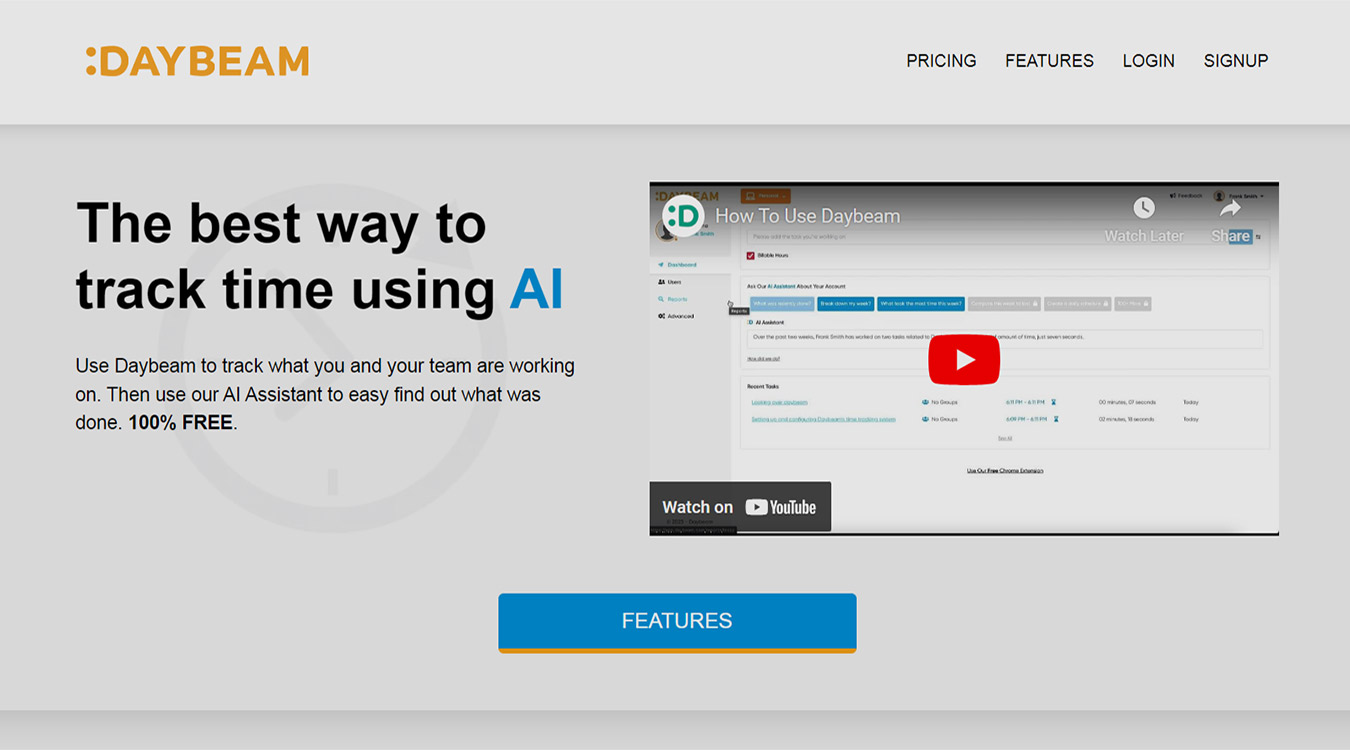
Daybeam is an effective time-tracking tool that companies of all sizes can use to track their team’s time. Daybeam utilizes an AI time-tracking tool that allows users to effortlessly track their team’s time and the tasks they’ve completed. With Daybeam, users can compare the activity of different weeks, see the activity of the current week, and summarize the work they’ve done or their team has done.
How
Daybeam Works
Daybeam is an effective time-tracking tool that companies of all sizes can use to track their team’s time. Daybeam utilizes an AI time-tracking tool that allows users to effortlessly track their team’s time and the tasks they’ve completed. With Daybeam, users can compare the activity of different weeks, see the activity of the current week, and summarize the work they’ve done or their team has done.
- Begin by selecting a plan one of the three plans that Daybeam offers users. Choose your plan and set up your account based on the size of your business, team, and what's needed.
- Utilize the Daybeam Google Chrome extension that makes it easy for users to stop and start the Daybeam tracker whenever they are working within the Google Chrome browser.
- Next, add your team to the Daybeam account. Daybeam allows you to easily add users to the account, and from there, they can track their own time spent on tasks, or you can add others to track the entire team. They'll be able to see what tasks they're working on, and you can easily assign specific roles and tasks to individual team members.
- You can then group users into intuitive groups. This allows you to place your team members in groups based on team, role, department, task, or other criteria that suit your business. You can add or remove users from groups if needed with just a few clicks.
- Once you have everything set up, you're able to receive smart, detailed reports from Daybeam that quickly show you all your time and expenses. You can see the collected data of what your entire team spends their time on and notice where you can improve productivity to make larger profits.
Who Is Daybeam Best For?
Once you have everything set up, you’re able to receive smart, detailed reports from Daybeam that quickly show you all your time and expenses. You can see the collected data of what your entire team spends their time on and notice where you can improve productivity to make larger profits.
What Makes Daybeam Great
Daybeam
Packages & Pricing
Daybeam offers three plan options for users, ranging from a Start-Up Plan to an Enterprise Plan. These plans offer a vast amount of features that users can take advantage of to take their company to the next level.
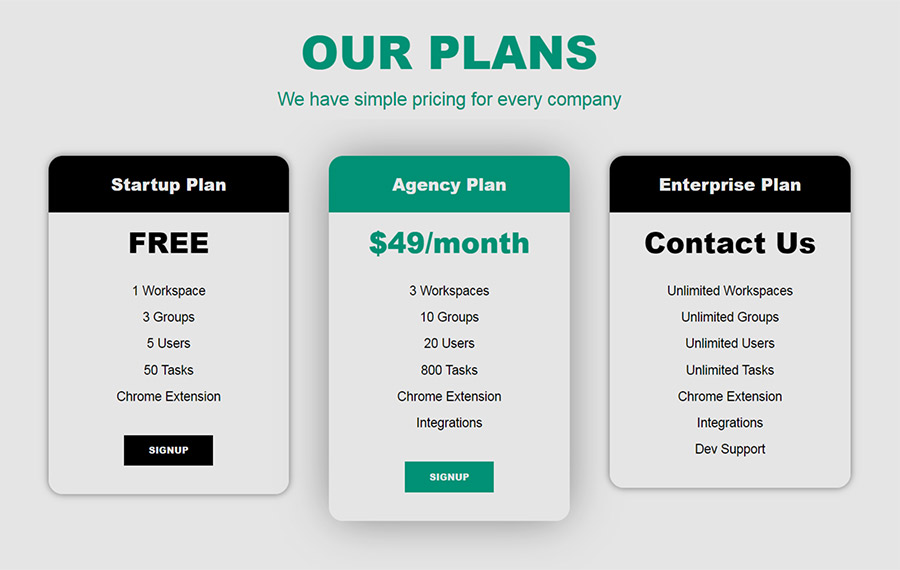
Start-Up Plan - $0
- 1 Workspace
- 3 Groups
- 5 Users
- 50 Tasks
- Chrome Extension
Agency Plan - $49/month
- 3 Workspaces
- 10 Groups
- 20 Users
- 800 Tasks
- Chrome Extension
- Integrations
Enterprise Plan - Contact For Pricing
- Unlimited Workspaces
- Unlimited Groups
- Unlimited Users
- Unlimited Tasks
- Chrome Extension
- Integrations
- Dev Support
Daybeam
PROS
- Easily start and stop the time tracker from anywhere on Google Chrome with the Chrome Extension
- The free plan option is excellent for start-ups
- Easily remove and add users from the account
- Easily remove and add users from the account
- The detailed reports will enable you to easily assess everything about your team with only one quick glance
Daybeam
CONS
- Although Daybeam offers a variety of features, they're lacking in some of the advanced features that other platforms offer
- The free plan only allows up to five users, which isn't convenient for larger sized businesses
02
"The most popular free time tracker for teams"
Meet Clockify
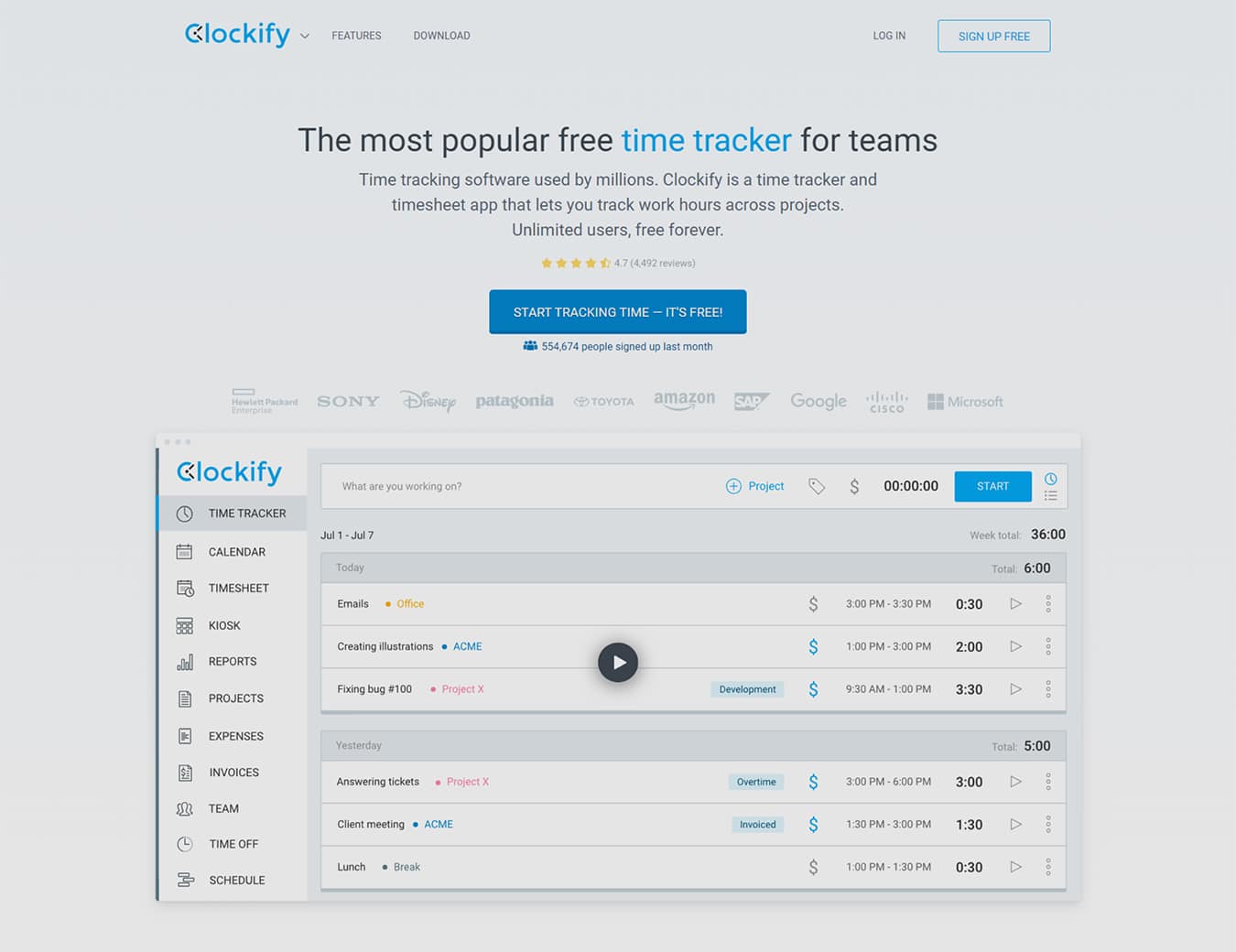
Clockify bills itself as the “most popular free time tracker for teams” with millions of users making use of the free time clock and timesheet app to track the work hours of an unlimited number of users across multiple projects all from one convenient location.
How
Clockify Works
Clockify was designed with ease of use in mind. Users and administrators are able to access the app, track time, and stay on top of workflows and deadlines from anywhere, at any time, on any device. All data is stored and synced in the cloud for seamless real-time operations.
After receiving and accepting their invitation users can start tracking their time in a few quick and easy steps.
- Create a Clockify account and choose your level of service
- Invite all of your team members to join your Clockify account to start tracking time. There is no limit to the number of users you can invite.
- Once your team receives their invitation they will open the Clockify app in any supported browser and log in using the email in their invitation.
- Once logged in, the time tracker will be clearly visible at the top of the user workspace screen. Users will type a brief task or project description in the time tracker text box and click the blue Start button to begin tracking the time worked.
- The Clockify icon will turn blue so you can see at a glance that the timer is running even after navigating away from the browser page.
- Users can attach a variety of tags as directed by administrators to help easily identify different tasks and projects for review and reporting.
- When you are finished working on a task or project, simply click to stop the timer.
- The project details and the time worked will be recorded and visible in a list below the time tracker box.
- You can quickly resume work on an existing project by selecting the project from the list and clicking the blue Start button.
- Time can be adjusted as needed using the manual time entry feature.
Who Is Clockify Best For?
Clockify works well for small to mid-sized businesses and other medium-sized teams. The unlimited free plans and affordable upgrades make it a great solution for startups and remote or hybrid companies looking for an easy-to-use option for managing a remote or hybrid team of employees or contractors. Clockify works best for teams of 15 to 50 users, as it may lack the advanced functions needed by larger, more complex organizational structures.
What Makes Clockify Great
Clockify keeps ease of use at the forefront. Business owners will appreciate the affordability and simplicity of the Clockify platform. There is no need to purchase expensive equipment or software, and no more lost hours spent pouring overtime cards and spreadsheets.
Your team will love how easy Clockify is to use. Team members can log in to Clockify and start or stop their timer from their desktop, laptop, or mobile device. They can even start their timer from one device and stop it from another, and if someone forgets to clock in or out, it is easy to adjust timers manually.
Administrators can see at a glance who is working, and what they are currently working on. Later, reports can be sorted by employee, team, project dates, and more to make analysis invoicing, billing, and payroll a breeze.
Clockify
Packages & Pricing
Clockify offers a range of price packages from a Free plan to a paid Enterprise plan. Clockify promises that their free plan will always be available for existing clients, and users can upgrade or cancel at any time. The prices shown below reflect the monthly subscription rates at the time of this writing. Users can save 20% when they opt to pay upfront for an annual subscription. A 7-day free trial is available for all paid subscriptions, with no credit card required to get started.
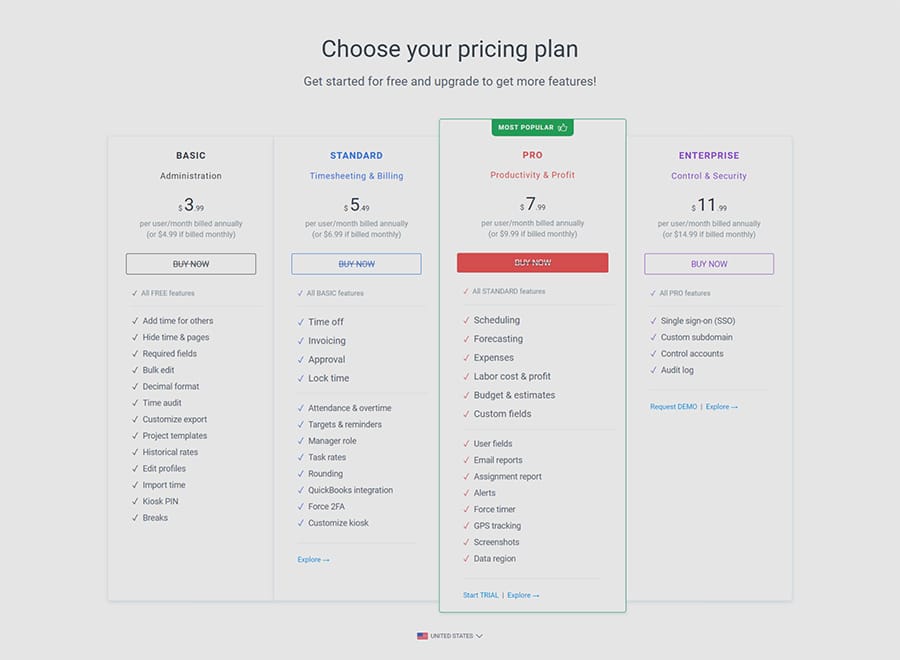
Free Plan - $0
- Unlimited users
- Unlimited tracking
- Unlimited projects
Basic Plan - $4.99 per user/per month
- Includes everything in the Free plan
- The ability to add time for other users
- Hide time & pages
- Required fields
- Bulk edit
- Decimal format
- Time audit
- Customize export
- Project templates
- Historical rates
- Edit profiles
- Import time
- Kiosk PIN
- Breaks
Standard Plan - $6.99 per user/per month
- Includes everything in the Basic plan
- Time off
- Invoicing
- Approval
- Lock time
- Attendance
- Targets & Reminders
- Manager role
- Task rates
- Rounding
- QuickBooks integration
- Force 2FA
- Customize kiosk
Pro Plan - $9.99 per user/per month
- Includes everything in the Standard plan
- Scheduling
- Forecasting
- Expenses
- Labor cost & profit
- Budget & estimates
- Custom fields
- User fields
- Email Reports
- Assignment Report
- Alerts
- Force timer
- GPS tracking
- Screenshots
- Data region
Enterprise Plan - $14.99 per user/per month
- Includes everything in the Pro plan
- Single sign-on (SSO)
- Custom subdomain
- Control accounts
- Audit log
Kiosk Add-On
- Pricing for upgraded kiosk users starts from $0.99 per user/per month
Clockify
PROS
- Clock in & out from anywhere on any device
- Users can choose to use the free package as long as they like
- The kiosk upgrade allows on-site employees to clock in & out from one central shared device
- The user-friendly interface features color-coded charts and graphs making it easy to identify trends and patterns
Clockify
CONS
- Lacks the advanced accounting features of some of the other platforms
- Works best for small to medium-sized teams. May become cumbersome to manage large organizations with many different departments or teams
03
"Time tracking that's easy, powerful, and frictionless"
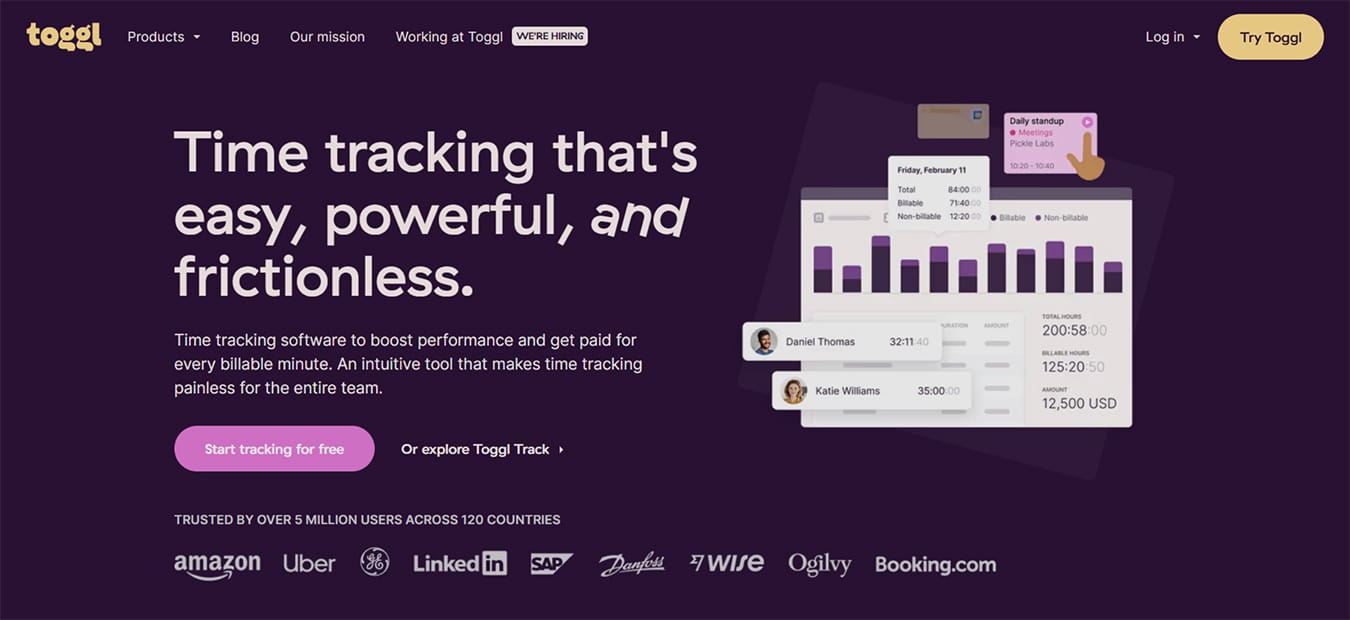
Meet Toggl Track
Toggl Track is part of a suite of time-tracking programs designed to help teams boost productivity and ensure that they are paid accurately for their work. The platform includes an array of intuitive, easy-to-use tools that make it quick to get started and simple to use.
Boost accountability, reduce the time spent calculating hours worked, and increase overall productivity through transparency and accountability.
How
Toggl Track Works
The Toggle Track app offers many different methods for creating time entries. Users will need to open the Toggl Track app and log in to their account to get started.
Start A New Time Entry:
- When the app is set to Timer Mode the user simply clicks the pink icon in the upper right-hand corner to begin tracking their time.
- Once the timer starts, the user will be prompted to enter a brief description, project title, tag, or other identifiers.
- The timer will now track your time spent working on this particular task until the timer is stopped.
- Stop the timer by clicking the red Stop button
Resume An Existing Time Entry:
- Hover the mouse over an existing time entry on the timer page in list view and click on the gray Continue button that appears on the right-hand side of the entry.
- The timer will automatically resume tracking time for this project.
- When finished, click the red Stop button
Manual Mode:
Manual Mode can be used to add time entries for work that has taken place already. This feature is useful when users forget to switch from one project to another or forget to begin tracking time on a particular project.
- Click the pink Play icon to start a new timer.
- Click on the timer duration field (0:00:00) and enter the time worked on the project.
- Hit Enter on the keyboard to confirm the time entry is correct.
- After hitting Enter, the pink Play icon will transform into a pink Checkmark icon.
- When you are satisfied that your entry is correct, click the pink Checkmark icon to finalize the manual time entry.
Start A New Time Entry:
- When the app is set to Timer Mode the user simply clicks the pink icon in the upper right-hand corner to begin tracking their time.
- Once the timer starts, the user will be prompted to enter a brief description, project title, tag, or other identifiers.
- The timer will now track your time spent working on this particular task until the timer is stopped.
- Stop the timer by clicking the red Stop button
Resume An Existing Time Entry:
- Hover the mouse over an existing time entry on the timer page in list view and click on the gray Continue button that appears on the right-hand side of the entry.
- The timer will automatically resume tracking time for this project.
- When finished, click the red Stop button
Who Is Toggl Track Best For?
Toggl Track offers a full range of services and packages designed to provide the ideal time-tracking solution for teams of all sizes. Toggl Track works great for freelancers tracking their own billable hours, small businesses and startups looking for a simple time clock tool, and large organizations in need of robust time tracking, scheduling, reporting, and accounting options.
What Makes Toggl Track Great
Toggl Track makes it easy to improve operational efficiency and time-tracking accuracy, eliminating the need to estimate billable hours or guess project costs. In fact, Toggl Track reports that increased accuracy results in users recording 25% more billable hours and a significant boost in the profitability of their business.
Better still, employees appreciate Toggl Track’s commitment to anti-surveillance principles. By alleviating employees’ privacy and autonomy concerns, administrators are able to get quick and full buy-in and accountability from their team.
Additionally, Toggl Track was built to blend seamlessly into your existing workflow with multiple methods for tracking time and more than 100 integrations available. Track time from your desktop, laptop, mobile device, or smartwatch. Use Toggl Track in conjunction with the most popular workflow management tools, and more.
Toggl Track
Packages & Pricing
Toggl Track offers two paid plans designed to accommodate both small teams and larger organizations. The Team plan is designed to assist small teams with simple workflow management tasks, while the Business plan is built to manage larger teams and organizations with clients and other external stakeholders. A free plan is available for individual users only, and cannot be used as a time clock for a team.
The prices shown below reflect the monthly rates at the time of this writing. Users can save 10% by opting to pay upfront for an annual subscription. Toggl Track also offers a 14-day free trial that allows users to try out all of the features on the Team plan free of charge. At the end of the trial, users will need to choose a paid plan to continue.
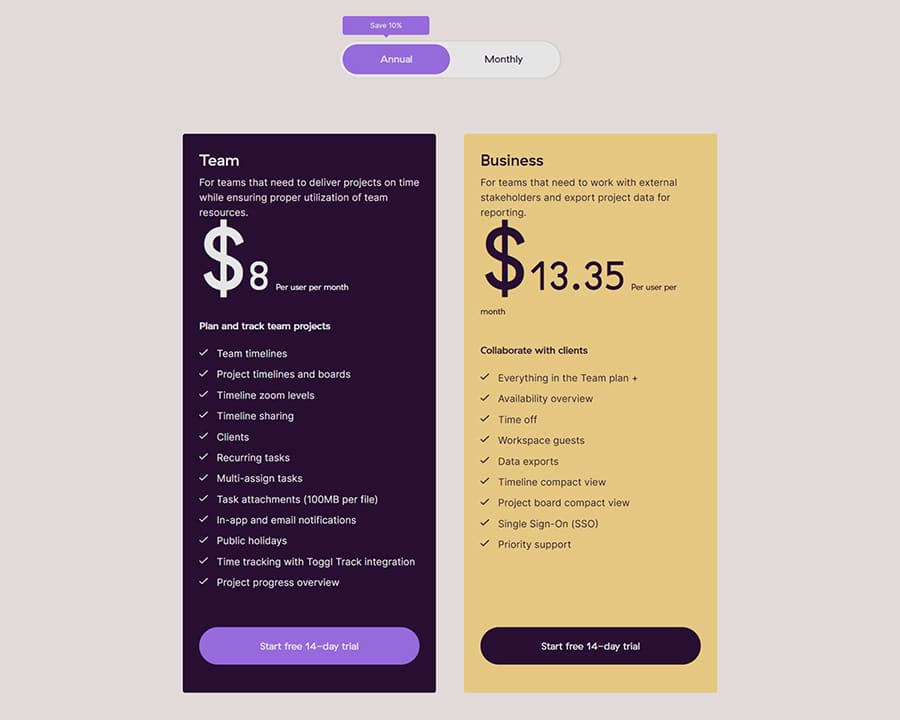
The prices shown below reflect the monthly rates at the time of this writing. Users can save 10% by opting to pay upfront for an annual subscription. Toggl Track also offers a 14-day free trial that allows users to try out all of the features on the Team plan free of charge. At the end of the trial, users will need to choose a paid plan to continue.
Team Plan - $9 per user/per month
- Plan and track team projects
- Unlimited Team timelines
- Visual workload management
- Shareable Project timelines
- Project task boards
- Recurring tasks
- In-app and email notifications
- Toggl Track integration
- 100MB storage per file
Business Plan - $15 per user/per month
- Includes everything in the Team plan
- Collaborate with clients
- Time off
- Invite workspace guest users
- Project data exports
- Timeline compact view
- Project board compact view
- Single Sign-On (SSO)
- Priority support
Toggl Track
PROS
- Users can clock in & out from any desktop, laptop, mobile device, or smartwatch
- No-surveillance policy improves employee willingness to install and use the tool
- The responsive support team generally responds within 3 hours
Toggl Track
CONS
- The ability to export reports is only available on the highest-priced tier
- The free plan is only available to individual users
04
"Time tracking that works the way you work"
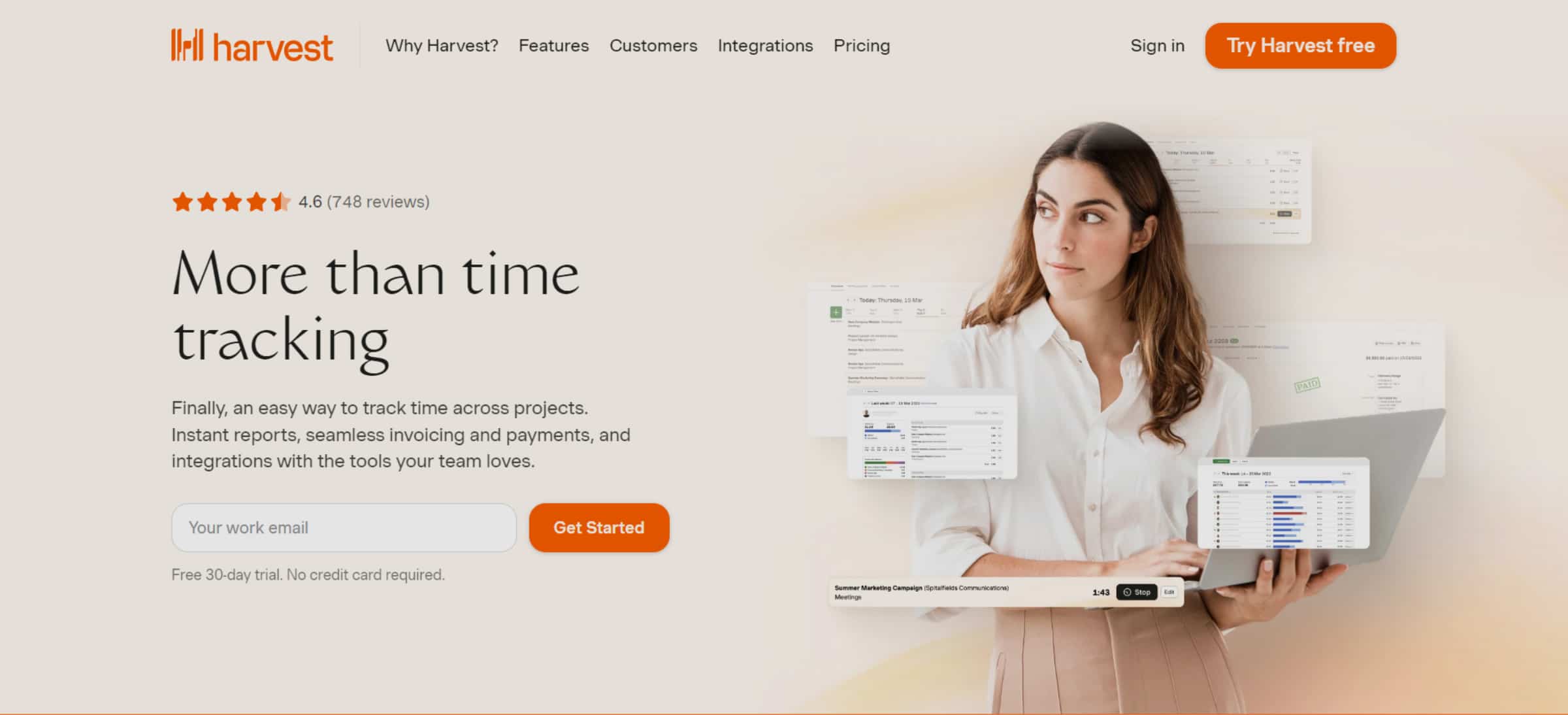
Meet Harvest
Harvest claims to offer “time tracking that works the way you work.” To that end, Harvest makes it easy to track work time and gain insights that allow you to learn from the past, keep current projects on track, and better estimate the time and budget needed for future projects.
Harvest offers to help users to identify key details in past data that can help them better scope future projects, understand which types of projects are the most profitable, and know when it is time to expand their workforce, or when they need to concentrate on gaining new business.
How
Harvest Works
Harvest offers a relatively straightforward and no-fuss user experience.
Invite Team Members:
- Navigate to the Team tab and click the Invite Person button.
- You will be presented with a series of options where you will choose the role(s), permission level, and billable rate for the team member you are adding.
- Optionally, you can also choose which projects to assign the team member to at this stage.
- Your new team member will be sent a customized invitation link that they can use to create their account and start tracking time.
Create A Project
- Navigate to the Projects tab and click New Project.
- Choose from one of three project types: Time & Materials, Fixed Fee, and Non-Billable.
- At this stage, you can name your project and optionally assign team members to the project, add tasks, set the billable rate, and create a budget.
- When you are satisfied with your entries, click to save the project.
- The saved project will now have its own analysis page where you can track individual tasks and overall project completion progress
Create Or Add A Task
- Navigate to the Manage tab and select the Tasks option.
- Click New Task to create a new task.
- You can now add the newly created task to one project, or multiple projects, or label it a recurring task so that it is automatically added to all future projects. You can also set the default billable rate for each task if desired.
Start Tracking Time:
- Navigate to the Time tab, then select Timesheet to create a new time entry.
- Make certain that you are on the Day View rather than the Week View screen.
- Click on the green Track Time button. You will be prompted to either start a timer or manually enter the time worked on a previous activity.
Who Is Harvest Best For?
Harvest boasts that it has been serving “teams of all sizes, across all types of industries for over 15 years” Harvest offers a flexible, scalable time-tracking solution that can be used by companies of all types and sizes. Whether you are a small agency or a large multi-department organization, Harvest promises to offer a “just-right” solution that will grow alongside your business.
What Makes Harvest Great
The creators of Harvest launched the platform with the core idea that time-tracking solutions are only effective when every team member is willing to actually use them. For that reason, Harvest was designed to facilitate widespread adoption, to easily integrate with all of your current workflow management tools, and to be flexible enough to easily serve all types of teams.
Harvest is able to integrate seamlessly with the tools your team already uses, and the intuitive user-friendly tool can be used to track your time from anywhere your team is working. Start or stop your time clock from your desktop, laptop, or mobile device.
In addition to the easy-to-use time-tracking tool, Harvest helps administrators keep projects on track and on budget with clear visual reports that allow you to quickly identify patterns, bottlenecks, and potential issues so you can resolve them quickly.
Harvest
Packages & Pricing
Harvest offers two very simple pricing tiers. The Free plan is designed for individual users looking for a time-tracking solution for freelance or contract work. The Pro plan is designed to provide a full time-clock and workflow management solution for teams of all sizes
The prices shown below represent the monthly rates at the time of this writing. Subscribers can save 10% when they opt to pay upfront for an annual subscription. Additionally, Harvest allows new users to try out the platform’s paid features free for 30 days.
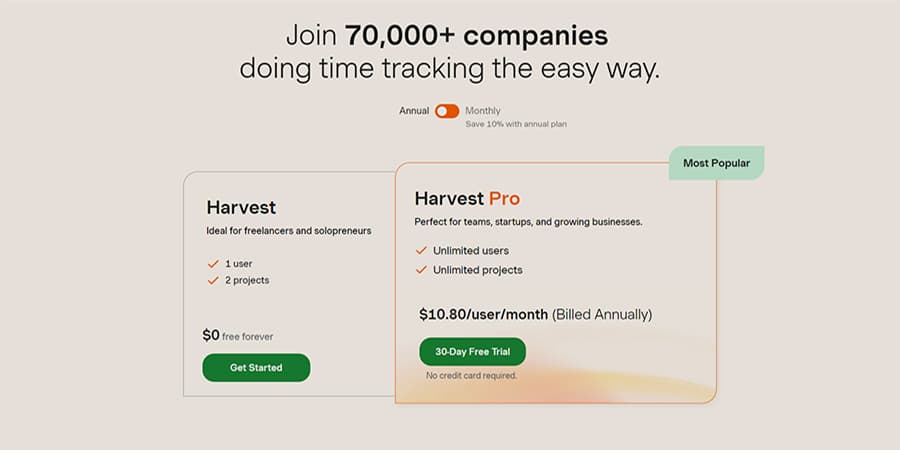
The prices shown below represent the monthly rates at the time of this writing. Subscribers can save 10% when they opt to pay upfront for an annual subscription. Additionally, Harvest allows new users to try out the platform’s paid features free for 30 days.
Free Plan - $0
- 1 seat
- 2 projects
Pro Plan - $12 per seat/per month
- Unlimited seats
- Unlimited projects
Harvest
PROS
- An extremely user-friendly interface eliminates the need for training and reduces the risk of errors
- Analytics and reports designed to help users gain insights into project costs to identify specific areas where they can increase efficiency and profitability
Harvest
CONS
- Fewer integrations than other platforms offer
- The free plan is limited to one seat only, so teams will need to pay for the Pro plan
- The free trial does not automatically convert to a free account; users will need to choose an option to continue using the platform after the 30-day trial ends
05
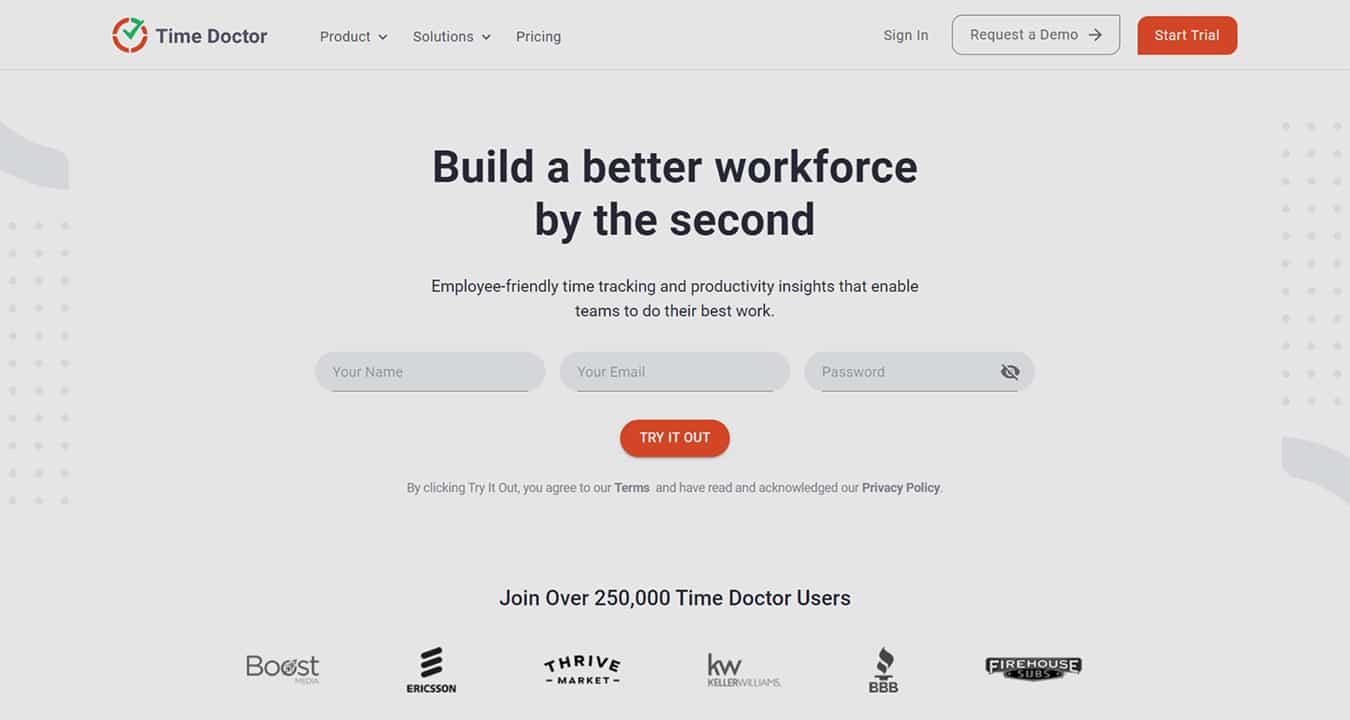
"Build a better workforce by the second"
Meet Time Doctor
Time Doctor is an automatic time clock and time-tracking solution that allows administrators to gain insight into their team’s productivity trends and empower them to do their best at all times.
The employee-friendly time tracking tool and at-a-glance reporting help team leads, project managers, and business owners identify patterns and trends that can help them understand where teams and individual members are excelling and what areas or employees could use some additional help or guidance.
Time Doctor helps administrators be more engaged with teams and employees on each and every project. Recognize top performers, offer encouragement and support when needed, and build a strong team-based attitude towards accountability and productivity.
How
Time Doctor Works
Time Doctor’s streamlined setup process makes it quick and easy to get started. Most administrators can complete the initial configuration in about 10 minutes, and individual users can generally be registered and ready to start tracking their time in around 5 minutes or less. Useful training videos walk users through the setup process below to help them get comfortable with the software and get started off on the right foot.
Administrators:
- Choose a package and click Register Here to create an account.
- Download and install the Time Doctor app
- After registration, administrators will need to complete the configuration by following the instructions provided by the system.
- Invite individual team members to join the team via email.
Team Members:
- After receiving an emailed invitation from the administrator, users will be asked to download and install the Time Doctor app on their computer.
- After installation is complete, open the app and log in using the credentials created at registration.
- Select your company from the option(s) provided.
- You will now see the main time tracking window and an optional activity bar. The main tracking window features several navigation selections that can be used to track and report time and view entries. These navigation links will differ based on the individual user’s role in the organization and the permissions they have been granted.
- Navigate to the Settings page and choose whether to display the optional activity bar and configure when you would like the time tracker activity bar to be visible and when it should be hidden. You can also select an option to be notified via a pop-up notification when tracking starts.
- You will now need to choose whether the time tracker will automatically start at log-in. This option can help reduce the risk of forgetting to clock in when starting the day. When users select the Launch At Login option, Time Doctor will automatically launch the application each time the computer is booted. Users can also choose to have the time tracker automatically begin tracking time at launch, or they may opt to start their time tracker manually at the start of each shift.
- Once you have selected your desired options, save your settings and return to the main time tracking window.
- Once setup is complete, users can easily and quickly start or stop tracking their time by simply clicking the large Play or Pause button on the screen. The top portion of the activity bar will turn green when the timer is running for a quick visual confirmation that your time is being tracked.
Who Is Time Doctor Best For?
Time Doctor offers a time-tracking solution for businesses of all types and sizes. Remote, on-site, and hybrid teams can all benefit from Time Doctor’s automatic time clock and productivity analytics. The accountability, transparency, and actionable insights provided by Time Doctor work equally well no matter where your team is located.
What Makes Time Doctor Great
Time Doctor’s productivity tools offer administrators the visibility they need to be able to see at a glance who is working and what they are working on at any given time throughout the workday. Later, these daily tracked activities can be compiled and analyzed to offer insight into where performance bottlenecks are occurring or when productivity lags. Managers and team leads can use this data to formulate effective solutions and promote best practices that improve overall performance and accountability across the organization.
A simple user interface makes Time Doctor a breeze to use and ensures that users always remember to clock in and out and track their time accurately across the many tasks, projects, or teams they may be working on throughout the day. Once the initial setup process is complete, users can create tasks and start tracking time with the click of a button, Time Doctor takes over from there, allowing users to focus on performing their best work rather than recording their time. Automatic alerts will tell users when the system is idle for an extended period helping to keep employees accountable and ensure accurate reporting.
Time Doctor tracks the total time spent working for each team member and provides a detailed breakdown of time use. Administrators can customize the app to choose the specific activities, tasks, and behaviors they want to track, allowing businesses to find the perfect balance of employee autonomy and accountability for their unique organizational culture.
Daily, weekly, and monthly summary reports are available to quickly identify behavior patterns and take actionable steps to introduce policy changes that reduce time-wasting activities helping to improve the company’s bottom line.
Time Doctor
Packages & Pricing
Time Doctor offers three pricing packages: Basic, Standard, and Premium. The package prices shown below represent the month-to-month subscription rate as of this writing. Users who opt to pay upfront for an annual subscription can receive 2 months of free service.
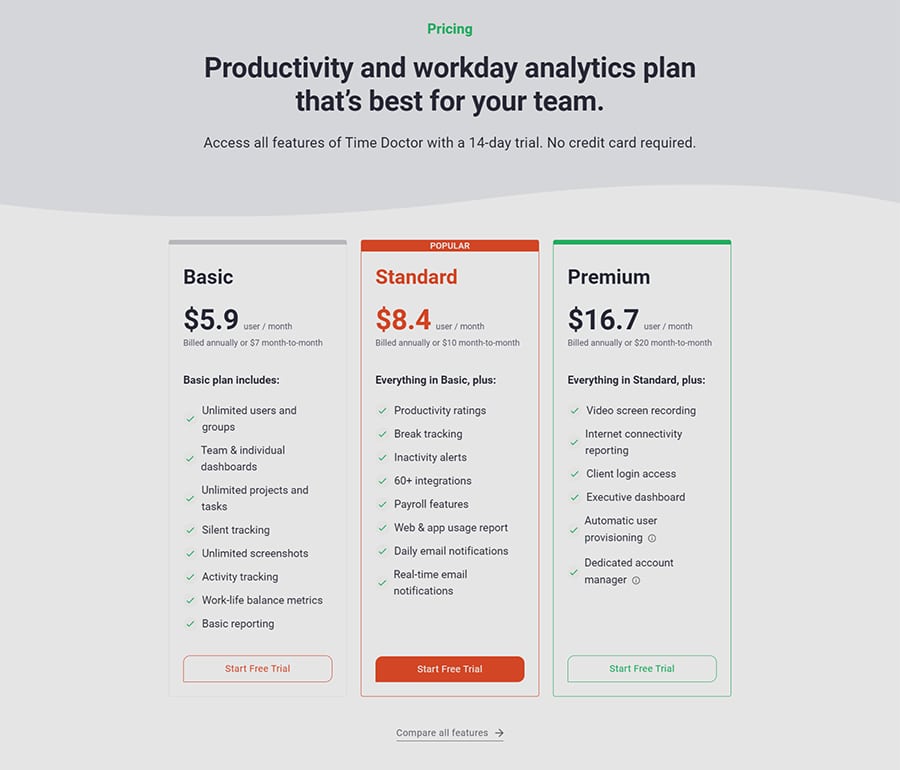
Basic Plan - $7 per user/per month
- Time tracking
- Tasks and projects
- Unlimited screenshots
- Activity tracking
- 3-day support
- 1 group/department
Standard Plan - $10 per user/per month
- Time tracking
- Tasks and projects
- Unlimited screenshots
- Activity tracking
- Track apps and URLs
- Payroll
- 60+ integrations
- Daily email notifications
- 24-hour support
- Up to 3 groups/departments
- 6 months of data history
Premium Plan - $20 per user/per month
- Time tracking
- Tasks and projects
- Unlimited screenshots
- Activity tracking
- Track apps and URLs
- Payroll
- 60+ integrations
- Daily email notifications
- Client login access
- VIP Support
- Concierge account setup
- Video screen captures
- Internet connectivity report
- 24-hour support
- Unlimited groups
- Unlimited data history
Time Doctor
PROS
- The time clock can be configured to start tracking time when the computer boots up to help reduce the chance of missed clock-ins and the need to estimate time
- Customizable tracking tools allow administrators to choose how to balance employee autonomy and privacy with accountability and productivity
- Alert notifications help users stay on track and encourage accurate time tracking by alerting the user when the computer is idle for a specified period while a timer is running
Time Doctor
CONS
- The number of options involved in the initial setup process may make it confusing for some users to configure it properly
- Employee surveillance features may cause privacy concerns and decrease employee acceptance
- Fewer integrations than some other time clock services
06
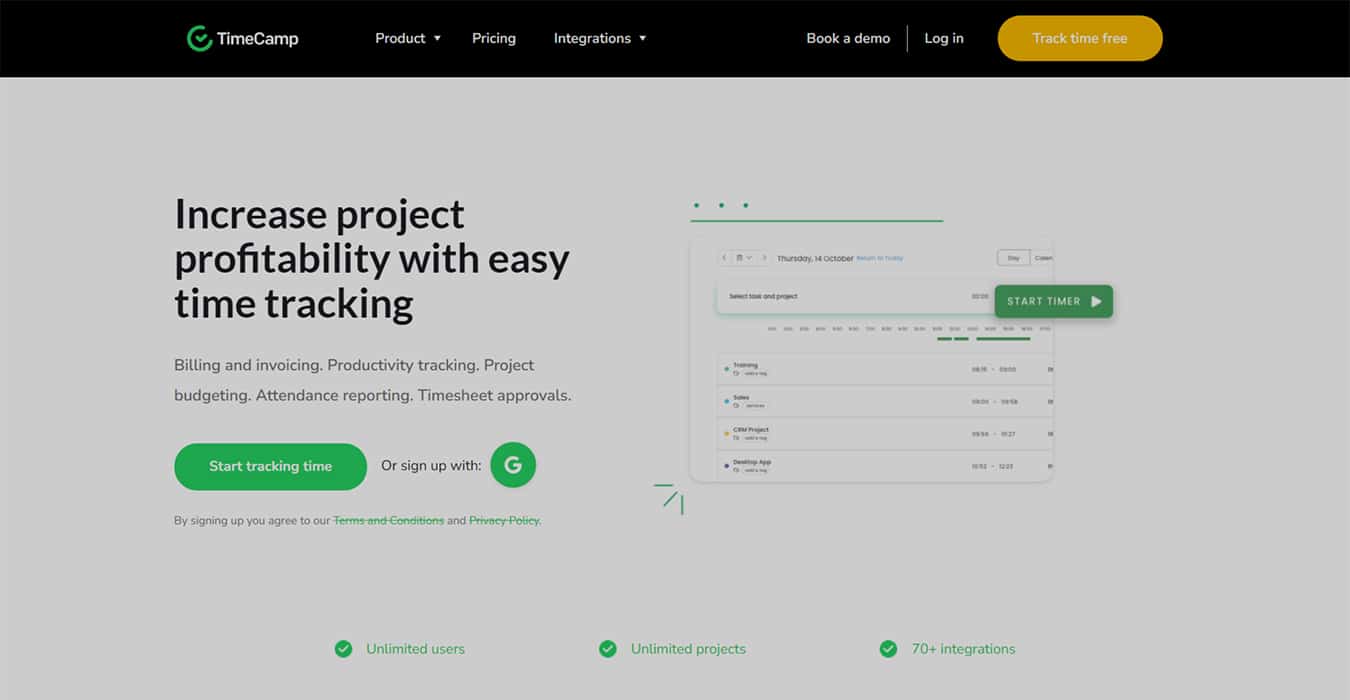
"Increase project profitability with easy time tracking"
Meet Time Camp
TimeCamp was designed to allow administrators and team leaders to measure and track the time that team members spend on tasks and projects. The platform can be used equally well for accurately supervising and compensating employees and billing clients for work.
TimeCamp can be integrated with third-party tools to bring added insight and convenience to project management, accounting, and scheduling tasks as well. When used properly, TimeCamp can help business owners and managers understand which practices lead to time waste and take actionable steps to reduce inefficiencies and optimize workflows.
How
Time Camp Works
TimeCamp can be quickly set up and configured to meet most time-tracking needs.
- Choose a package and enter details to create a TimeCamp account.
- After logging in you will be taken to the Timesheet dashboard screen.
- Click the Gear icon in the top right corner to access the account settings options. From this menu, you can configure your TimeCamp account, add integrations, and invite users to join your team(s).
- Invite users by entering the email address for each team member manually or import a CSV file containing the email info for all users at once.
- Users will need to respond to the emailed invitation and follow the enclosed instructions to log in to the TimeCamp account.
- After registration/log-in is completed administrators can create new projects by either clicking on the Project tab and entering the project details or clicking Select Task from the Timesheet dashboard and clicking the Plus icon to create a new project.
- After creating a project, you can assign team members to work on various projects making it easy for users to simply select the project or task and begin tracking time.
- Users can clock in and out of projects by simply selecting the task or project from the daily Timesheet dashboard and clicking to start or stop the timer.
Who Is Time Camp Best For?
Businesses and teams of all types and sizes can use TimeCamp. TimeCamp offers a variety of ways to track time from a convenient web app to a more robust desktop app that allows administrators and users to monitor activity in the background as users work. A browser extension and mobile app are perfect for allowing hybrid and remote workers to clock in and clock out anytime from anywhere that they happen to be. The at-a-glance analytics provide real value for both in-house teams and remote operations.
What Makes Time Camp Great
TimeCamp is built for accuracy, transparency, and accountability. Users can track time worked and billable hours through both automatic and manual time entries. A built-in Timesheet allows both individual users and administrators to view detailed time-use information in an easy-to-understand graphical format or a calendar view.
Administrators and team leaders can easily track the time spent working on various projects, making it easy to identify patterns and make corrections where needed to improve performance and efficiency across the organization. TimeCamp provides clear graphical visualization of all the data needed to analyze performance to ensure your team always stays on track.
Time Camp
Packages & Pricing
TimeCamp offers a freemium plan that grants users the ability to use the basic time clock function at no charge. Three paid plan tiers let subscribers upgrade their account to include a wider range of integrations and features. The prices shown below reflect the monthly subscription cost as of this writing. Users who opt to pay upfront for an annual subscription can save $1 off the monthly per-user rate.
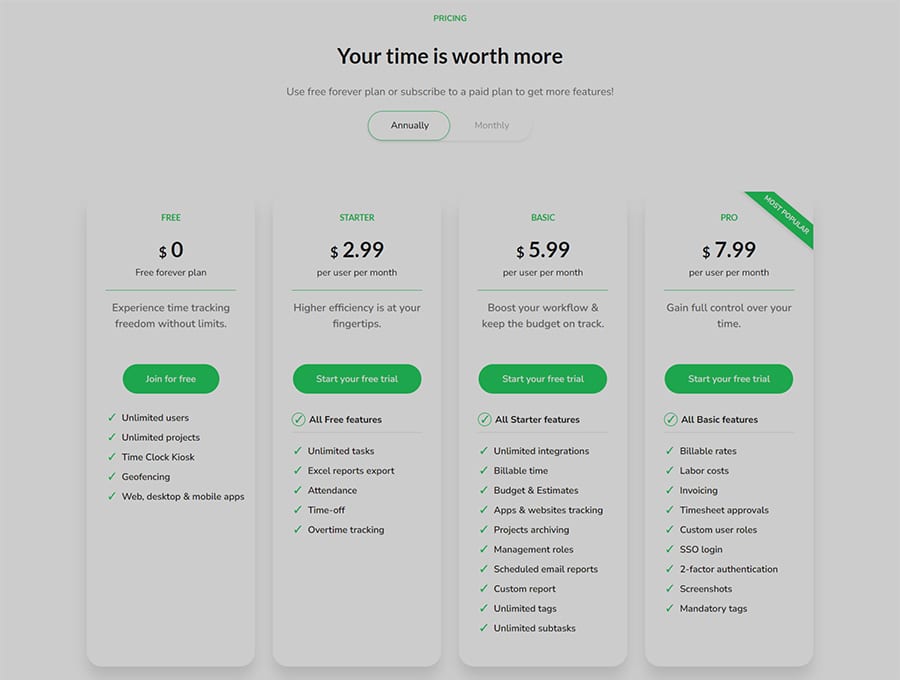
Free Forever Plan - $0
- Unlimited users
- Unlimited Projects & tasks
- Desktop & Mobile app
Basic Plan - $7.99 per user/per month
- Time rounding
- Custom report
- Hide time from users
- Management roles
- Team productivity tracking
- XLS reports export
- Unlimited integrations
- Billable time & budgeting
Pro Plan - $10.99 per user/per month
- Everything in the Basic plan
- Custom user roles
- Billing rates
- Invoicing
- Timesheet approvals
- Screenshots
- SSO login
- 2-factor authentication
Enterprise Plan - Custom Pricing
- Everything in the Pro plan
- Personalized training
- Private cloud implementation
- Self-hosted server
Time Camp
PROS
- Ability to clock in and out from any device or computer using the web app, mobile app, browser extension, or desktop app
- The free Forever plan allows users to make use of basic functionality at no charge
- Built-in invoicing tools add value and increase functionality
Time Camp
CONS
- Integrations are not available on the Free Forever plan
- Time entries cannot be deleted or transferred from one project to another making it difficult to correct erroneous entries
- Employee monitoring features may cause privacy concerns and decrease employee acceptance
07
"Time tracking software built for your business"
Meet QuickBooks Time
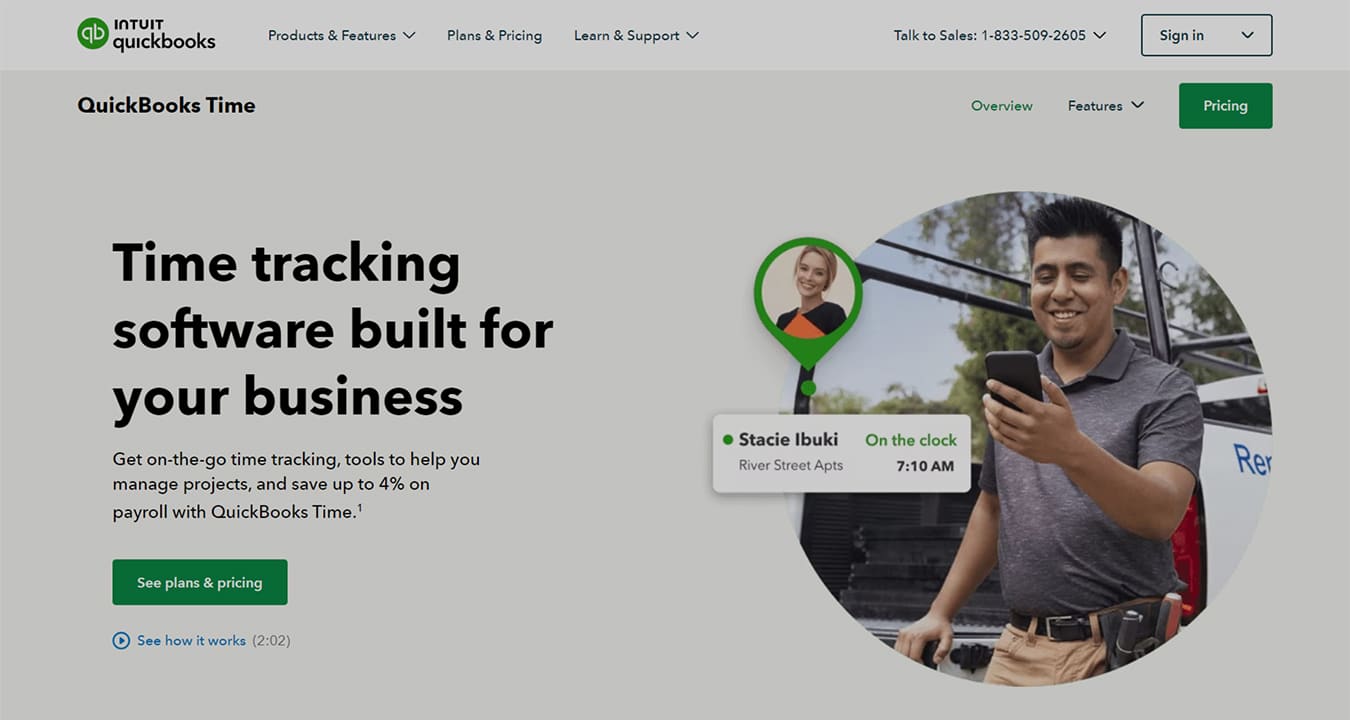
QuickBooks is well known for its suite of business and personal accounting software. The QuickBooks Time platform is a time clock and time tracking tool designed to integrate seamlessly with QuickBooks accounting, invoicing, and payroll tools. QuickBooks Time can be used to create employee schedules, track work hours, and automatically remind employees to clock in or out.
How
QuickBooks Time Works
TimeCamp can be quickly set up and configured to meet most time-tracking needs.
- Choose a package and provide the required details to create an account and log in to your QuickBooks Time account.
- Once logged into QuickBooks Time, users can select an existing job or customer task, and click Clock In to begin automatically tracking the time spent working on the project.
- Users can also start a new job or task by simply clicking Clock In and entering a brief description of the job they are currently working on.
- Switch between jobs throughout the workday by selecting the new job or task from a list of entries and clicking Switch.
- At the end of the work day, click Clock Out to stop tracking time for the day.
Who Is QuickBooks Time Best For?
Like the other tools in the QuickBooks suite, QuickBooks Time is designed to be used by individuals and businesses alike. QuickBooks Time can be used by businesses of any size in any industry from nonprofits and retail to restaurants, professional services, construction, and more.
What Makes QuickBooks Time Great
With more than 75,000 five-star reviews, QuickBooks Time is one of the most popular and best-rated time clock applications. Users report that they have been able to reduce their payroll processing time and cut costs using QuickBooks Time tracking tools.
QuickBooks Time works from anywhere that your workers happen to be. The QuickBooks mobile app can track time and continues to work offline for enhanced reliability even in areas where wifi or cellular coverage may be spotty or unavailable. Users can easily track time and submit timesheets for approval right from the QuickBooks Time app.
Administrators will appreciate the ability to manage multiple user timesheets at once using the QuickBooks Time Crew app and the option to view employee locations using the convenient visibility provided by the Who’s Working tool.
QuickBooks Time
Packages & Pricing
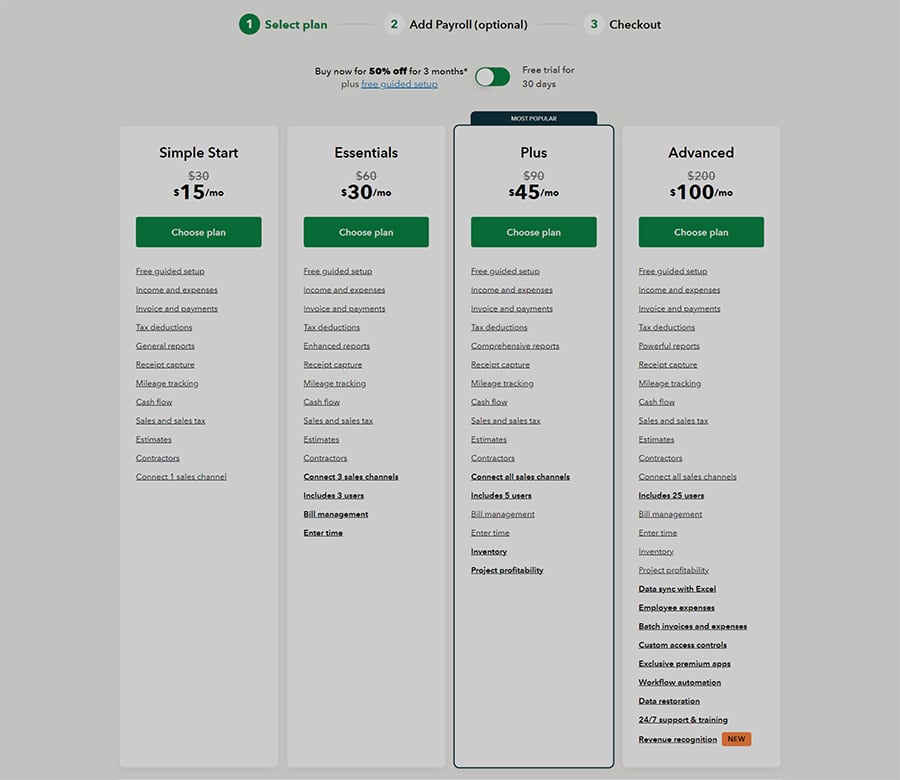
QuickBooks Time pricing packages can take a bit of time to sort through as QuickBooks offers quite a few options and combinations. However, for those who are willing to take the time to crunch the numbers, there are plenty of choices available. Subscribers can choose from four basic time tracking plans: Simple Start, Essentials, Plus, and Advanced. Payroll processing functionality is available as an add-on package offering upgraded features at three different price points.
QuickBooks Time offers a 30-day free trial to allow users to sample the app before subscribing. For a limited time, new subscribers can save 50% off the standard monthly subscription rates below for the first three months of service.
QuickBooks Time offers a 30-day free trial to allow users to sample the app before subscribing. For a limited time, new subscribers can save 50% off the standard monthly subscription rates below for the first three months of service.
Simple Start Plan - $30 per month
- Income and expenses
- Invoice and payments
- Tax deductions
- General Reports
- Receipt Capture
- Mileage tracking
- Cash flow
- Sales and sales tax
- Estimates
- Contractors
- Connect one sales channel
Essentials - $55 per month
- Income and expenses
- Invoice and payments
- Tax deductions
- Enhanced Reports
- Receipt Capture
- Mileage tracking
- Cash flow
- Sales and sales tax
- Estimates
- Contractors
- Connect three sales channels
- Includes three users
- Bill Management
- Enter time
Plus Plan - $85 per month
- Income and expenses
- Invoice and payments
- Tax deductions
- Comprehensive Reports
- Receipt Capture
- Mileage tracking
- Cash flow
- Sales and sales tax
- Estimates
- Contractors
- Connect all sales channels
- Includes five users
- Bill Management
- Enter time
- Inventory
- Project Profitability
Advanced Plan - $200 per month
- Income and expenses
- Invoice and payments
- Tax deductions
- Powerful Reports
- Receipt Capture
- Mileage tracking
- Cash flow
- Sales and sales tax
- Estimates
- Contractors
- Connect all sales channels
- Includes more than five users
- Bill Management
- Enter time
- Inventory
- Project Profitability
- Business analytics with Excel
- Employee expenses
- Batch invoices and expenses
- Customized Access
- Exclusive Premium Apps
- Dedicated account team
- On-demand training
- Workflow automation
- Data restoration
Payroll Add-On Package
All payroll plans include:
- Fast, unlimited payroll runs
- Automatic tax calculations on every paycheck
- Manage garnishments and deductions
- Automated taxes and forms
- Payroll reports
- Workforce portal
Payroll Core Plan - $45 per month + $5 per employee/per month
- Full-service payroll (includes automated taxes & forms)
- Auto Payroll
- Team health benefits
- 401(k) plans
- 1099 E-File & Pay
- Expert product support
- Next-day direct deposit
Payroll Premium Plan - $75 per month + $8 per employee/per month
- Full-service payroll (includes automated taxes & forms)
- Auto Payroll
- Run Auto Payroll for salaried employees on direct deposit
- Team health benefits
- 401(k) plans
- 1099 E-File & Pay
- Expert product support
- Same-day direct deposit
- Workers’ comp administration
- HR support center
- Expert review
- Track time on the go
Payroll Elite Plan - $125 per month + $10 per employee/per month
- Full-service payroll (includes automated taxes & forms)
- Auto Payroll
- Team health benefits
- 401(k) plans
- 1099 E-File & Pay
- Expert product support
- Same-day direct deposit
- Workers’ comp administration
- HR support center
- Expert setup
- Track time and projects on the go
- 24/7 expert product support
- Tax penalty protection
- Personal HR advisor
Quickbooks Time
PROS
- QuickBooks Time integrates with QuickBooks Payroll & Accounting as well as more than 50 additional accounting and payroll apps
- Mobile app can be used to track time, location, and mileage offline when wifi and cellular service are unreliable
- Tax filing and reporting assistance available for an additional fee
Quickbooks Time
CONS
- Businesses and larger teams with more than 5 users will need to subscribe to the highest priced tier
- Payroll processing is not included in the base subscription rate
- Complicated pricing packages can be difficult to understand
08
"Wise tracking pays more"
Meet Paymo
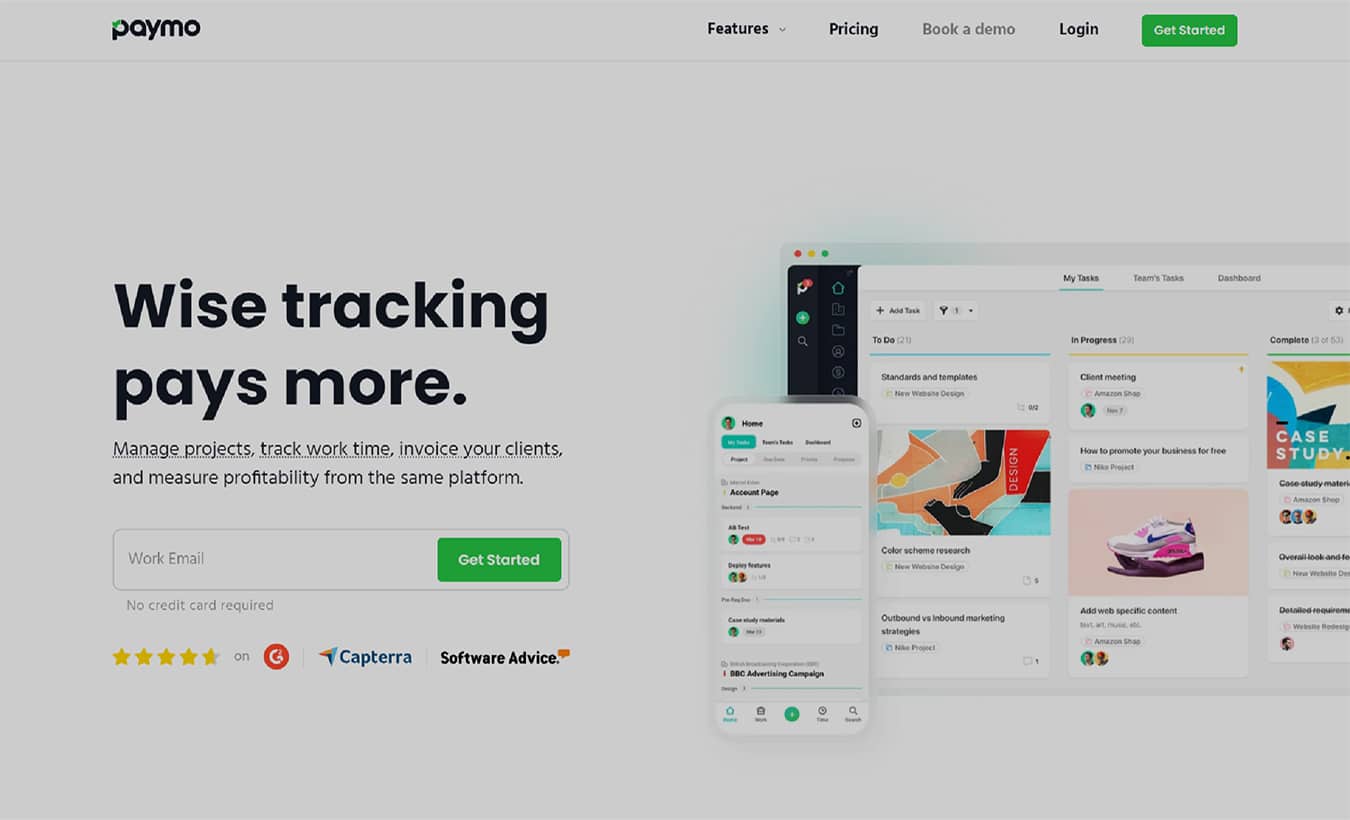
Paymo is a web-based time tracking and project management platform that allows businesses, organizations, and freelancers to track time worked, manage workflows, and create team schedules from one convenient location.
Paymo is a full-featured tool with a variety of useful functions including task management, budgeting & planning charts, scheduling planner, collaboration tools, accounting & time management tools, and much more.
How
Paymo Works
Paymo time tracking and project management features can be used to create tasks, group tasks into projects, set deadlines, and assign users to tasks. Use the time tracking and visualization tools to get an overview of progress and productivity at an individual or team level.
Getting started is easy.
- Choose a subscription package and enter the required details to create your Paymo account.
- Once logged in, click on the profile image in the bottom left corner of the screen to configure your personal and company info and settings.
- To begin tracking time, click on the Web Timer located in the bottom left corner of the screen to open the timer app.
- Select the project or task you wish to work on or manually enter a new task description, and click Start to begin tracking time.
- When you are done working on a task, simply re-open the timer and click Stop to stop the timer and record the time entry.
Who Is Paymo Best For?
Paymo is best suited for small to medium-sized businesses that will be able to make use of all of the invoicing and billing features that the platform offers in addition to the time tracking solutions. Large organizations with multiple departments may find that Paymo is not robust enough to meet their time management and payroll needs.
What Makes Paymo Great
Getting and keeping the whole team on track and keeping projects moving forward on budget, and on schedule can be a daunting task for even the most experienced administrator. Paymo’s suite of project management tools combined with an easy-to-use time tracker help keep teams organized and productive
Paymo combines a standard time clock with built-in collaboration tools, workflow management, file proofing, budgeting tools, and much more. The Timesheet dashboard allows administrators and users to see all the information they need from one convenient location. See who is working on what project, where they are working from, and how long they worked on each task.
Paymo makes reporting, budgeting, and performance review tasks easier by allowing users to sort and export time reports in a pie chart or bar chart format for a quick visual reference of the hours worked per client, project, or user.
Paymo
Packages & Pricing
Paymo offers a free plan as well as three paid options. The Free and Starter plans are limited to one user only, so businesses and teams will need to select either the Small Office or Business plan for employee time-tracking functions.
The prices shown below reflect the monthly subscription rates at the time of this writing. Users who opt to pay upfront for an annual subscription can get 10 months for the price of 12. A free trial allows users to try the Paymo service at no charge with no credit card required.
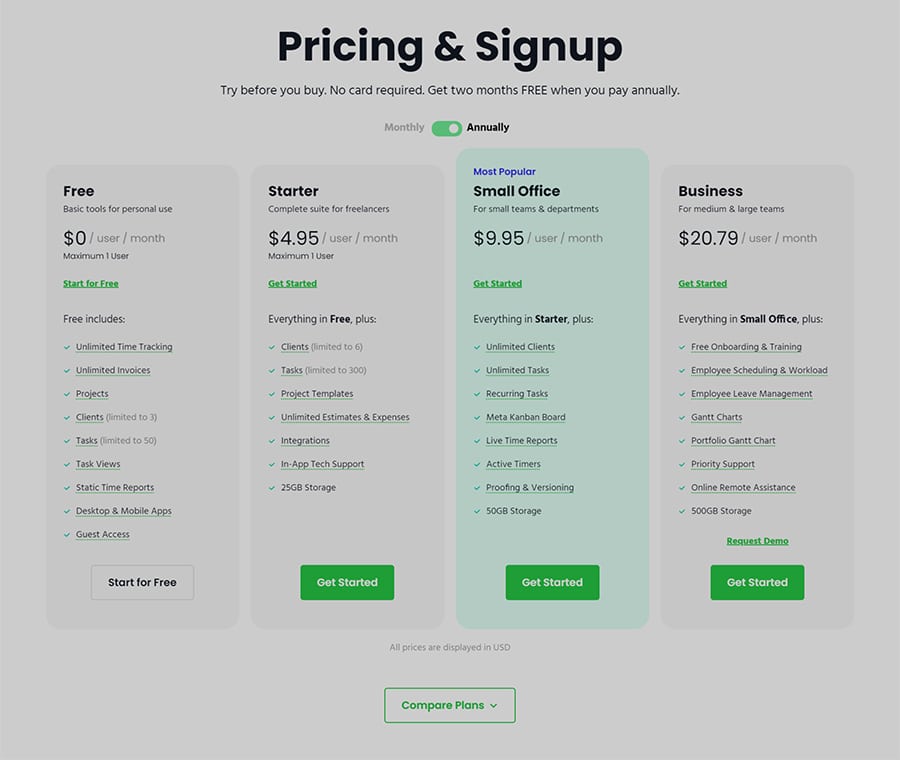
Free Plan- $0
- Maximum of one user
- Unlimited Time Tracking
- Unlimited Invoices
- Projects
- Clients (limited to 3)
- Tasks (limited to 50)
- Task Views
- Static Time Reports
- Desktop & Mobile Apps
- Guest Access
Starter Plan- $5.95 per user/per month
- Maximum of one user
- Everything in the Free plan
- Clients (limited to 6)
- Tasks (limited to 300)
- Project Templates
- Unlimited Estimates & Expenses
- Integrations
- In-App Tech Support
- 25GB Storage
Small Office Plan - $11.95 per user/per month
- Everything in the Starter plan
- Unlimited Clients
- Unlimited Tasks
- Recurring Tasks
- Meta Kanban Board
- Live Time Reports
- Active Timers
- Proofing & Versioning
- 50GB Storage
Business Plan - $24.95 per user/per month
- Everything in the Small Office plan
- Free Onboarding & Training
- Employee Scheduling & Workload
- Employee Leave Management
- Gantt Charts
- Portfolio Gantt Chart
- Priority Support
- Online Remote Assistance
- 500GB Storage
Paymo
PROS
- Project management and charting tools included in paid packages
- Invoicing and billing tools included in paid packages
- No credit card required; free trial allows users to try out the service before committing to a paid subscription
Paymo
CONS
- The free and lower priced tiers are limited to one user only; teams and businesses will need to purchase one of the higher priced tiers to track time
- No automatic time tracking function; timers must be started and stopped manually
09
"Driving productivity for work teams everywhere"
Meet Hubstaff
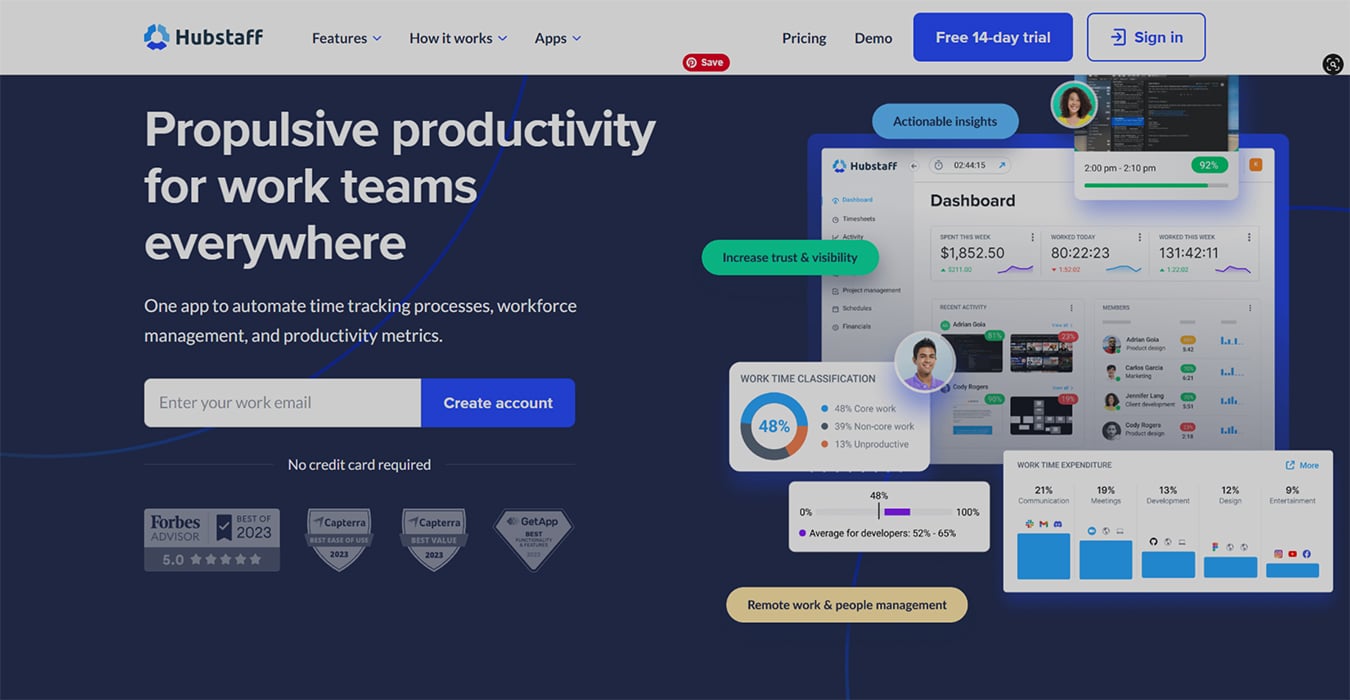
Hubstaff is a productivity suite and time tracker that offers a high degree of customization options. The platform was designed to help businesses, organizations, and teams of all sizes become more aware of how they are spending their time throughout the workday. Hubstaff believes that through knowledge and awareness, team members are empowered to hold themselves accountable and focus and productivity will naturally increase as a result.
How
Hubstaff Works
While using Hubstaff to log time is a fairly simple process, the many customization options may extend the amount of time needed to set up and configure the service.
Follow the steps below to complete the basic setup process.
- Choose a subscription package and enter the required details to create your Hubstaff account.
- Invite team members to join the team via email. The invited team member will need to follow the instructions in the email to download the Hubstaff app.
- Administrators can create tasks and assign users from the administration dashboard.
- Users can then track time by clicking on an assigned project or task and starting the timer to begin tracking.
- When the user is done working on a task, they can select the task and click to stop the timer before moving on to the next task, or ending the workday.
Who Is Hubstaff Best For?
Hubstaff tools are designed to work with on-site teams, remote workers, and hybrid workforces. Businesses of any size in any industry can benefit from Hubstaff time tracking and project management tools. Hubstaff currently services clients in over 100 unique industries, including creative agencies, software developers, accountants, construction companies, health care teams, eCommerce operations, and more.
What Makes Hubstaff Great
Hubstaff was designed for convenience. Administrators can monitor and manage projects, workflows, schedules, and attendance from one central dashboard. View team member hours, activity, proof of work screenshots, and detailed reports to identify patterns and intervene when needed.
Hubstaff automates the team and project management process. Administrators no longer need to waste time tracking down project updates or employee time reports.
Productivity and activity reports give administrators insights into how users are working, the apps that are being used, and the time that is spent in each location. This can allow administrators to identify when a particular team member is struggling and intervene to offer solutions to improve productivity and efficiency.
Hubstaff’s advanced budgeting and expense tracking features help businesses track not only labor costs but project and client costs as well. See at a glance which clients and projects provide the highest profit margins and which are draining resources for little return. These valuable insights can help organizations prioritize their team’s time to maximize profitability.
Hubstaff
Packages & Pricing
Hubstaff offers several price package options. Subscribers can choose from basic time-tracking subscription packages or more comprehensive office and project management packages geared towards on-site and remote workforces, or field workers. Add-on packages and upgrades can be purchased to further customize the Hubstaff platform to meet the needs of your business or organization.
The prices shown below reflect the month-to-month subscription rates at the time of this writing. Subscribers can receive 10 months for the price of 12 when they opt to pay upfront for an annual subscription. A free 14-day trial and 30-day money-back guarantee let users make certain that Hubstaff is a good fit for their company before committing to a subscription.
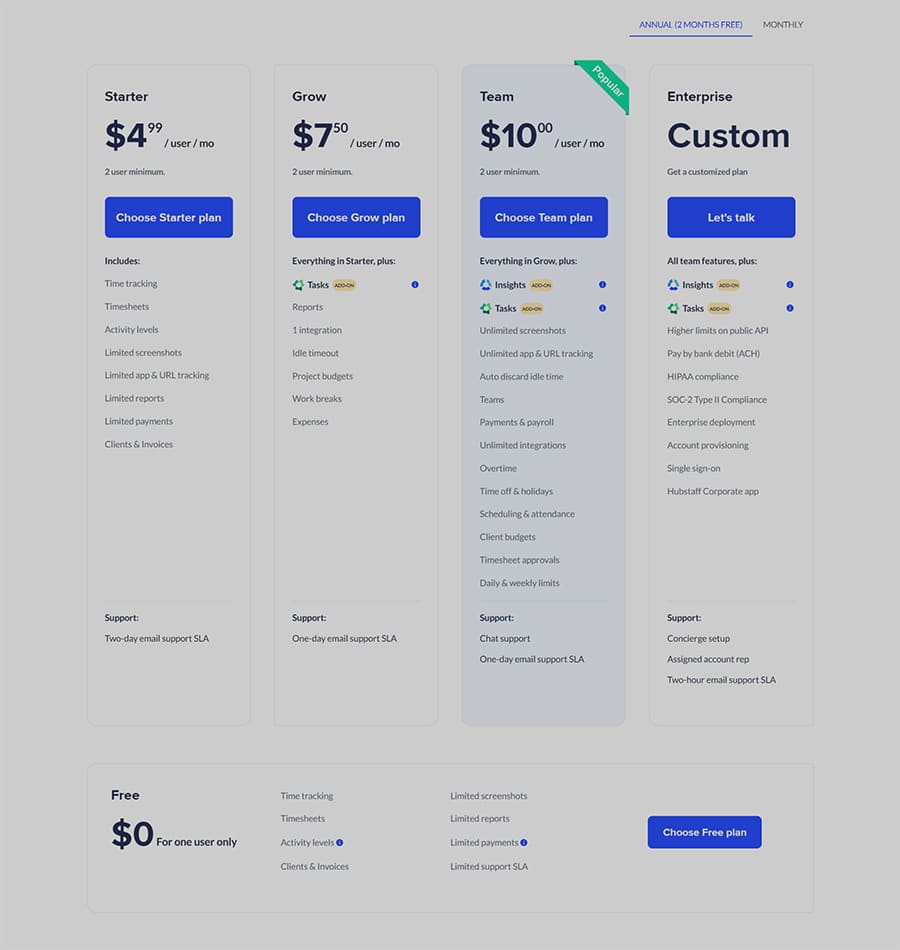
The prices shown below reflect the month-to-month subscription rates at the time of this writing. Subscribers can receive 10 months for the price of 12 when they opt to pay upfront for an annual subscription. A free 14-day trial and 30-day money-back guarantee let users make certain that Hubstaff is a good fit for their company before committing to a subscription.
Hubstaff Time
Time Free Plan- $0
- One user
- Time tracking
- Timesheets
- Limited reports
- Limited payments
Time Starter Plan- $7 per user/per month
- Includes everything in the Time Free plan
- Limited payments
- One integration
- Tasks (limited to 300)
- 24-hour support
- Per user settings
- Management roles
- Modify time settings
- Require reason for time edits
- Edit other member’s time
- Batch actions
- Export reports
Time Pro Plan - $10 per user/per month
- Includes everything in the Time Starter plan
- Unlimited teams
- Payments & payroll
- Unlimited integration
- Limited public API
- Time off & holidays
- Scheduling & attendance
- Invoices
- Client & project budgets
- Timesheet approvals
- Daily & weekly limits
- Expense tracking
- 24-hour support
Enterprise Plan - Custom Pricing
- Includes everything in the Time Pro plan
- Insights (add-on option)
- VIP Support
- Concierge set up
- Higher limits on public API
- Unlimited Job sites
- Pay by bank debit (ACH)
- HIPAA compliance
- SOC-2 Type II Compliance
- Single sign-on
Hubstaff Desk
Desk Free Plan - $0
- Time tracking
- Timesheets
- Activity levels
- Limited screenshots
- Limited reports
- Limited payments
Desk Starter Plan - $7 per user/per month
- Includes everything in the Desk Free plan
- Unlimited screenshots
- Reports
- One integration
- 24-hour support
- Per user settings
- Idle timeout
Desk Pro Plan - $10 per user/per month
- Includes everything in the Desk Starter plan
- Track apps & URLs
- Custom idle timeout
- Auto discard idle time
- Unlimited teams
- Payments & payroll
- Unlimited integration
- Limited public API
- Time off & holidays
- Scheduling & attendance
- Invoices
- Client & project budgets
- Timesheet approvals
- Daily & weekly limits
- Expense tracking
Enterprise Plan - Custom Pricing
- Includes everything in the Desk Pro plan
- Insights (add-on option)
- VIP Support
- Concierge set up
- Higher limits on public API
- Unlimited Job sites
- Pay by bank debit (ACH)
- HIPAA compliance
- SOC-2 Type II Compliance
- Single sign-on
Hubstaff Field
Field Pro Plan - $12 per user/per month
- Time tracking
- Timesheets
- Work orders & jobs
- Mobile GPS tracking
- Fleet tracking
- Limited Job sites
- Unlimited teams
- Payments & payroll
- Unlimited integration
- Limited public API
- Time off & holidays
- Scheduling & attendance
- Invoices
- Client & project budgets
- Timesheet approvals
- Daily & weekly limits
- Expense tracking
- 24-hour support
Desk + Field Plan - $15 per user/per month
- Includes everything in the Field Pro plan
- Activity levels
- Unlimited screenshots
- Track apps & URLs
- Custom idle timeout
- Auto discard idle time
Enterprise Plan - Custom pricing
- Includes everything in the Desk + Field plan
- Insights (add-on)
- VIP Support
- Concierge set up
- Higher limits on public API
- Unlimited Job sites
- Pay by bank debit (ACH)
- HIPAA compliance
- SOC-2 Type II Compliance
- Single sign-on
Optional Add-Ons
Get even more out of your Hubstaff plan: Become a project management, compliance, or analytics pro with our time-saving add-ons
Insights - $2 per user/per month
- Categorized work time
- Benchmark & trends
- Team leaderboard
- Focus time
- Meetings time
- Work time target
- Behavioral highlights
- Activity timeline
- Work time classification
Tasks - $3 per user/per month
- Kanban
- Timeline
- Comments
- Start / Due dates
- Attachments
Data Retention - $2 per user/per month
- This add-on extends data retention within Hubstaff from 3 to 6 years
Hubstaff
PROS
- High-degree of customization allows users to create their ideal time tracking solution
- “One-Minute Setup” eliminates the learning curve and has employees tracking time immediately
- 24-hour customer support
Hubstaff
CONS
- Fewer integrations than other apps
- Complicated pricing structure may be confusing for some users
- Many of the most useful features must be added on for an additional fee
10
"AI Powered Time Tracking Software"
Meet Timely
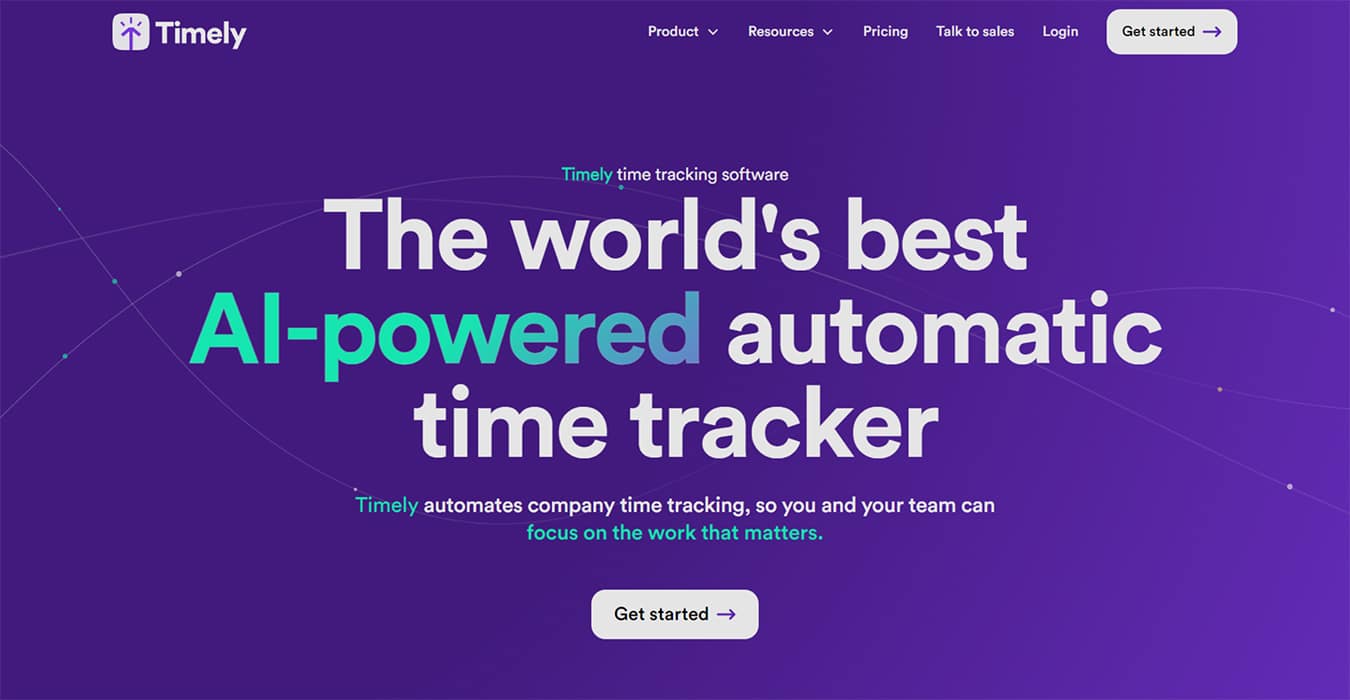
Timely bills itself as the “world’s best AI-powered automatic time tracker”. Timely provides an automatic time-tracking solution that integrates seamlessly into your workflow, tracking time across the web and in every desktop app used for work.
Timely provides a precise daily accounting of the time spent working in document processors, staff meetings, sending emails, visiting websites, making video calls, and more.
How
Timely Works
Timely works in the background to capture activity and create time-tracking reports while users work throughout the day. The activity reports are captured as individual user “Memories” and each entry is stored in a unique Memory List that is visible only to that specific user. This allows for comprehensive activity tracking while protecting user privacy and autonomy. At the end of the day, users simply drag and drop specific Memories onto the public timesheet to be compensated for their hours worked.
Follow the steps below to get started.
- Choose a subscription package and provide the required details to create a Timely account.
- Download and install the Timely web app and Memory app to begin tracking and recording activity.
- The main dashboard view displays a Memory Inbox which will begin to populate with all of your entries after you have installed both apps.
- Simply drag and drop selected Memories to the public timesheet to be reviewed and approved by administrators for compensation. Private Memories are visible only to the individual user. Once added to the public timesheet the entries are visible to the entire team.
Who Is Timely Best For?
The Timely app offers some unique features and functionality however the advanced AI-powered technology does come at a fairly steep price tag. This means that Timely is best suited for companies and organizations with the budget to afford Timely’s advanced tracking capabilities.
Timely provides precision tracking which makes it an ideal choice for complicated business structures or projects that require detailed time tracking and analysis reports.
What Makes Timely Great
Timely claims that its unique AI-powered automatic time-tracking solution has helped reduce the time spent on timesheet administration tasks and payroll processing by 75%. Timely captures every billable detail, every second of every workday. This fine-tracking function allows administrators to bill clients accurately, create better budgets, and compensate employees fairly.
Timely’s AI-powered tool works in the background without the need for users to interrupt their creative process or workflow to manually stop and start timers. All activity is automatically added to a private list of Memories visible only to the individual user until the user manually adds the time entry to the publicly visible timesheet. This creates a more natural work environment that empowers workers to immerse themselves in their work and log their time for compensation when the work is completed for the day.
Timely is committed to protecting user privacy and building an environment of trust. All tracked work activity is completely private, and users control which activity they choose to share for compensation. Timely will never allow screenshot capturing, keystroke or mouse motion monitoring, or other invasive surveillance tactics.
Timely
Packages & Pricing
Timely offers four price tiers: Starter, Premium, Unlimited, and Unlimited +. The prices shown below reflect the current monthly rates at the time of this writing.
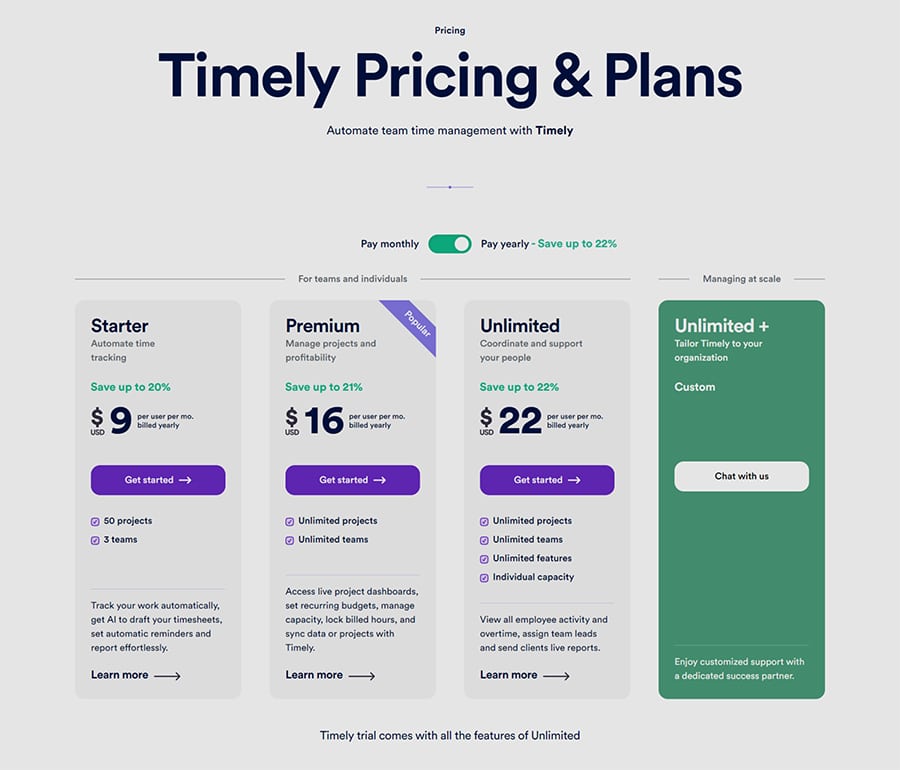
Starter Plan- $11 per user/per month
- 50 projects
- Three teams
- Automatic time tracking
- AI-drafted timesheets
- Automatic reminders
Premium Plan- $20 per user/per month
- Unlimited projects
- Unlimited teams
- Access live project dashboards
- Set recurring budgets
- Manage capacity
- Lock billed hours
- Sync data or projects
Unlimited Plan - $28 per user/per month
- Unlimited projects
- Unlimited teams
- Unlimited features
- Individual capacity
- View all employee activity and overtime
- Assign team leads
- Send clients live reports
Unlimited + Plan - Custom pricing
- Tailor your plan to scale with your business
- Custom support
- Dedicated “Success Partner”
Tasks Add-On - from $5 per user/per month
- Tasks helps teams assign, schedule and track progress against complex deliverables
Timely
PROS
- AI-powered automatic time tracking runs seamlessly in the background recording all activity with no input needed from the user
- Recorded activity is stored privately and visible only to the user
- Users can choose what activity to share for compensation
- Granular activity tracking lets administrators see precisely how much time was spent on a particular project while allowing for better project budgeting, planning, and billing
Timely
CONS
- Tasks add-on is required to use Timely as a team time clock, which raises the cost by $5 per user/per month.
- Timely does not offer a free plan option
- Timely is more expensive than the majority of competitors
11
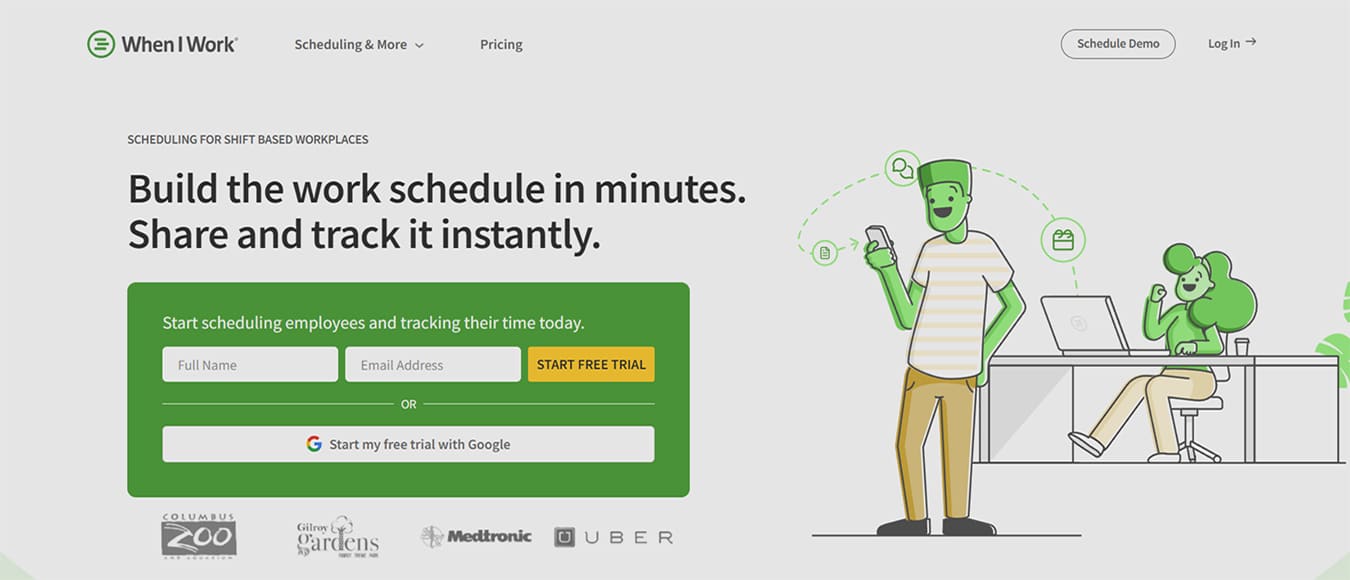
"Build the work schedule in minutes. Share and track it instantly"
Meet When I Work
When I Work is an online time clock app with built-in GPS that allows administrators, remote workers, and contractors to accurately log their time worked, and location across a variety of devices. Reliable time tracking, hassle-free attendance management,
digital timesheets, payroll integrations, and labor reporting help you manage your budgets and get back to business.
When I work customers report seeing as much as a 20% reduction in labor costs and a 3x reduction in attendance issues after implementing the When I work time tracking solution.
How
When I Work Works
Timely works in the background to capture activity and create time-tracking reports while users work throughout the day. The activity reports are captured as individual user “Memories” and each entry is stored in a unique Memory List that is visible only to that specific user. This allows for comprehensive activity tracking while protecting user privacy and autonomy. At the end of the day, users simply drag and drop specific Memories onto the public timesheet to be compensated for their hours worked.
The process is simple.
- Choose the appropriate subscription package and provide the required details to create a When I Work account.
- Choose the Set Up Attendance tab
- The intuitive setup will prompt you to provide your pay periods (i.e. weekly, bi-weekly, etc.), and choose how users will clock in and out of the platform (i.e. desktop, mobile device, or both)
- Opt-in or out of on-demand pay features
- After set-up, you will be redirected to the main dashboard where you will be able to create and manage employee schedules, create and assign shifts, and manage timesheets.
- Click the green Invite Users button in the header bar to start adding your team. Enter the team member's email address in the pop-up window and click to send an invite.
- Once logged in, team members can simply click on the Clock In option in the drop-down menu, select a shift, enter a note if needed, and click the green Clock In button to begin tracking their time.
Who Is When I Work Best For?
When I Work was built to accommodate the needs of teams, businesses, and organizations of all types and sizes. When I Work currently services a wide range of organizations including restaurants, retail stores, professional services, entertainers, healthcare providers, software developers, universities, hotels, salons, call centers, construction companies, non-profits, and more.
What Makes When I Work Great
When I Work can turn any device into a full-featured, secure, employee time clock. Remote workers, field workers, and contractors can easily clock in and out of work using their laptop, tablet, iPad, or Android smartphone for the ultimate reliability and flexibility. A built-in GPS feature allows field workers and managers to show their location and ensure that they are at the correct job site.
Attendance data is recorded and shared in real-time allowing administrators to know and act immediately when an employee has not clocked in or shown up at the job site at the expected time. This helps to reduce the occurrence of missed clock-ins and helps managers cover for no-shows right away.
When I Work partners with Clair to grant employees access to a portion of their pay prior to payday right from the When I work app. The Clair integration is included at no cost to the business, and will not change the payroll process. Administrators can choose to opt out of the Clair integration if desired
When I Work
Packages & Pricing
When I Work offers two pricing tiers: Standard and Advanced. Both plans include a full range of features and complete time-tracking functionality. The prices shown below reflect the current monthly subscription rates at the time of this writing.
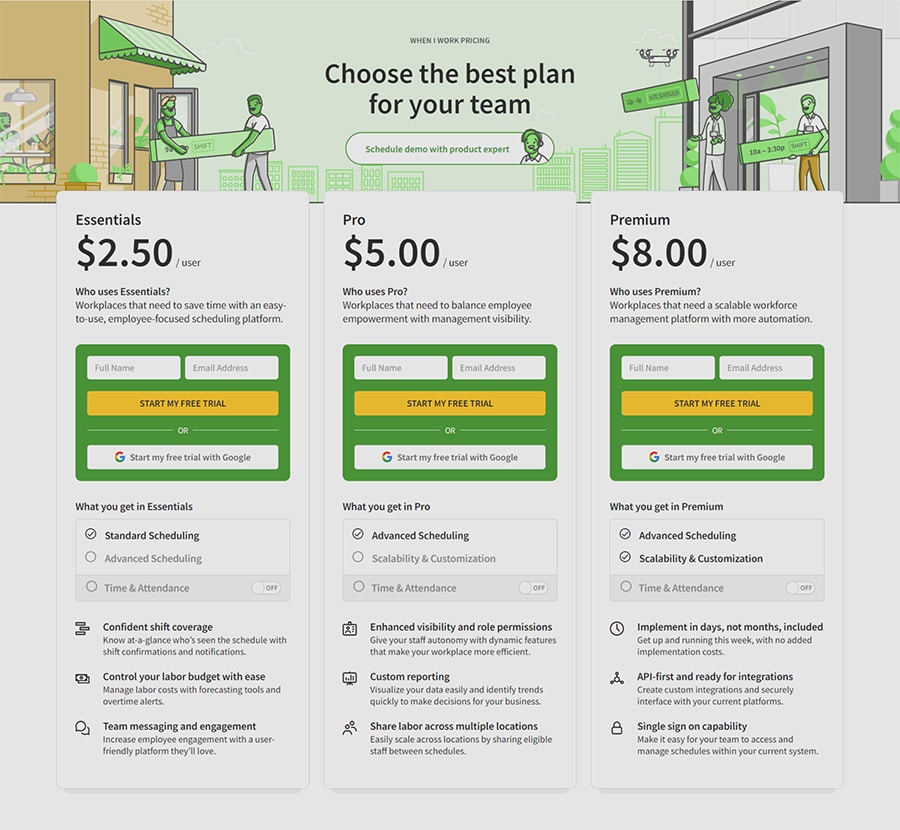
Standard Plan- $4 per user/per month
- Unlimited users
- Up to three Administrators
- Team Messaging
- Availability Management
- Time Off Management
- Workplace Dashboard
- Document Storage
- SMS and Push Notifications
- Multi-Factor Authentication (MFA)
- Auto Scheduling
- Schedule Builder
- Schedule Templates
- Multiple Schedule Views
- Multiple Time Frame Views
- Labor Planning
- Multiple Schedules or Locations
- Job Sites
- Tags
- Task Lists
- Overtime Visibility and Management
- Shift Swapping and Releasing
- Shift Bidding
- Shift Notifications and Reminders
- Standard Scheduling Exports
- Mobile, Web, and Terminal Time Clock
- Timesheets
- Overtime Alerts
- Break Management
- Attendance Notifications and Reminders
- Mobile Clock In/Out with GPS Enforcement
- Early Clock In Prevention
- Photo Clock In Confirmation
- Standard Attendance Exports
- Attendance Notices Report
- Labor Distribution Reports
- Custom Attendance Reports
- Payroll and POS Integrations (ADP, Gusto, Square, and more)
- Timesheet Rounding
-
On-Demand Pay by Clair
- Instant, and flexible access to earnings
- Clair Debit Mastercard®
- Spending and Savings Accounts
- Fee-free cash withdrawals
Advanced Plan- $8 per user/per month
- Unlimited users
- Up to three Administrators
- Includes everything in the Standard plan
- Advanced Scheduling Rules
- Role Permissions
- Custom Shift Reports
- Labor Sharing
- API Key Access
- SAML/SSO
- Global User Privacy
- Webhooks
- Custom Attendance Reports
When I Work
PROS
- Easy-to-use, responsive user interface
- Work across all devices allowing users to clock in and out from their mobile device, laptop, or desktop
- Built-in GPS feature ensures that employee is at the correct job site location when clocking in
- Real-time attendance alerts allow administrators to quickly remedy no-show events
- Clair integration allows users to access pay before payday
When I Work
CONS
- Limited number of integrations with project management and payroll processing services
- Limited Reposting And Export Capabilities